How to Create a New Performance Review Period
Learn how to efficiently set up and configure a new performance review cycle within EvalFlow. This guide walks you through selecting templates, defining participant groups, and finalizing period details to streamline your evaluation process.
Navigation
1. Navigate to https://app.evalflow.com/dashboard
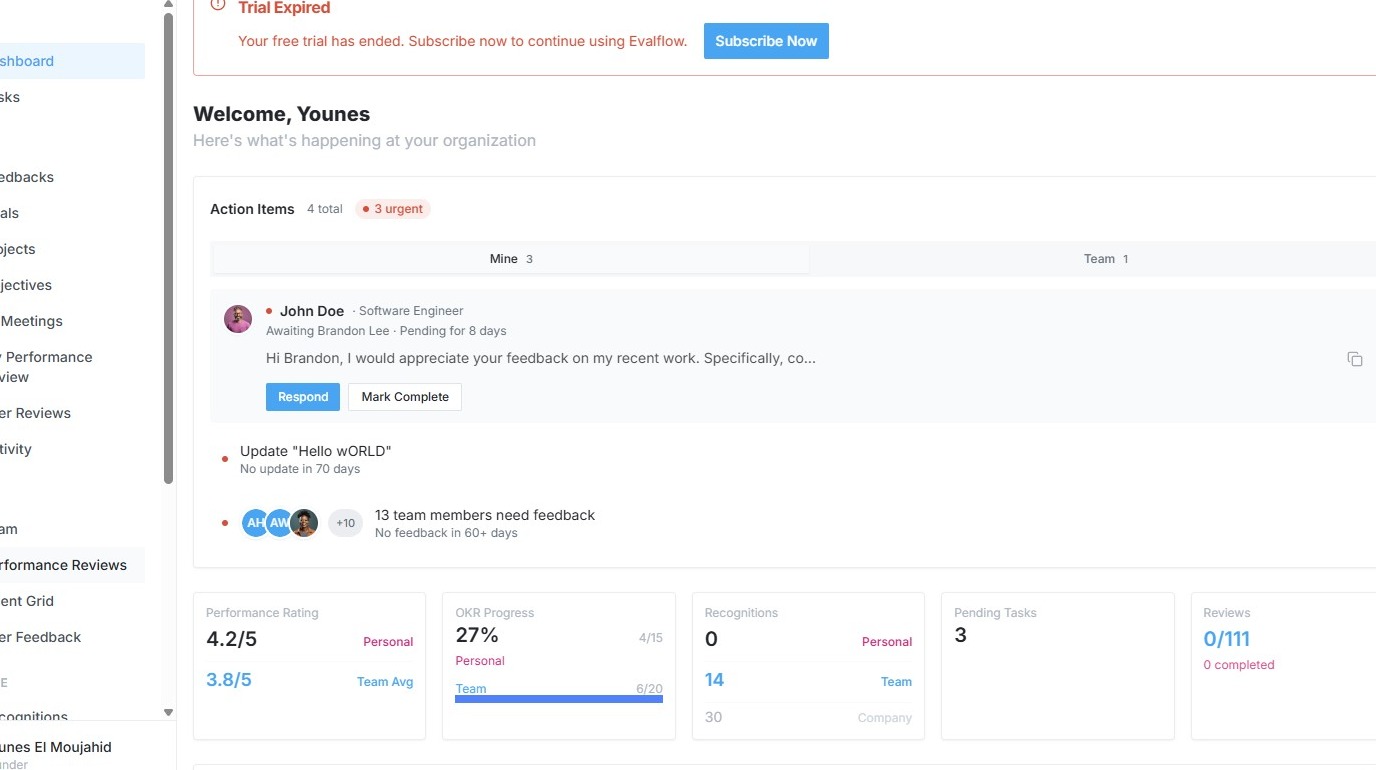
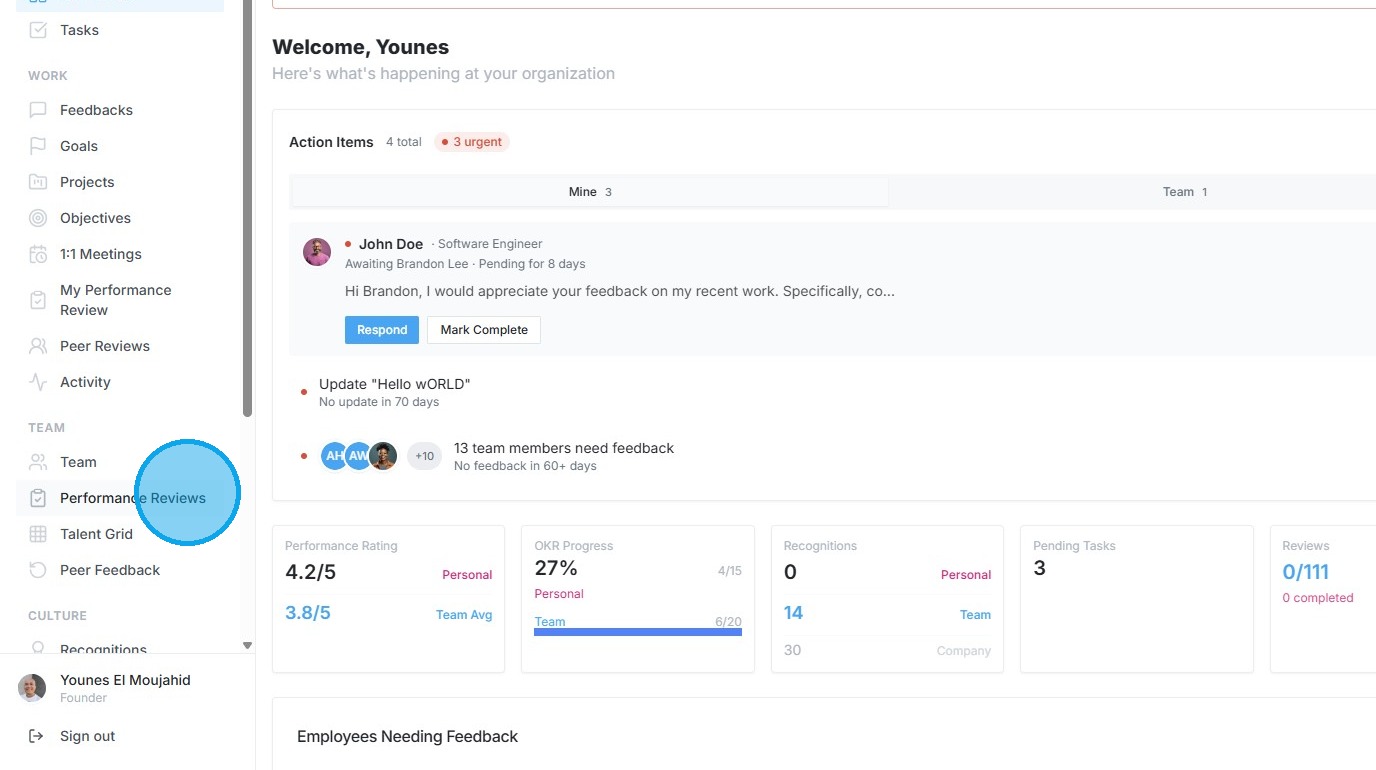
2. Click "Performance Reviews"
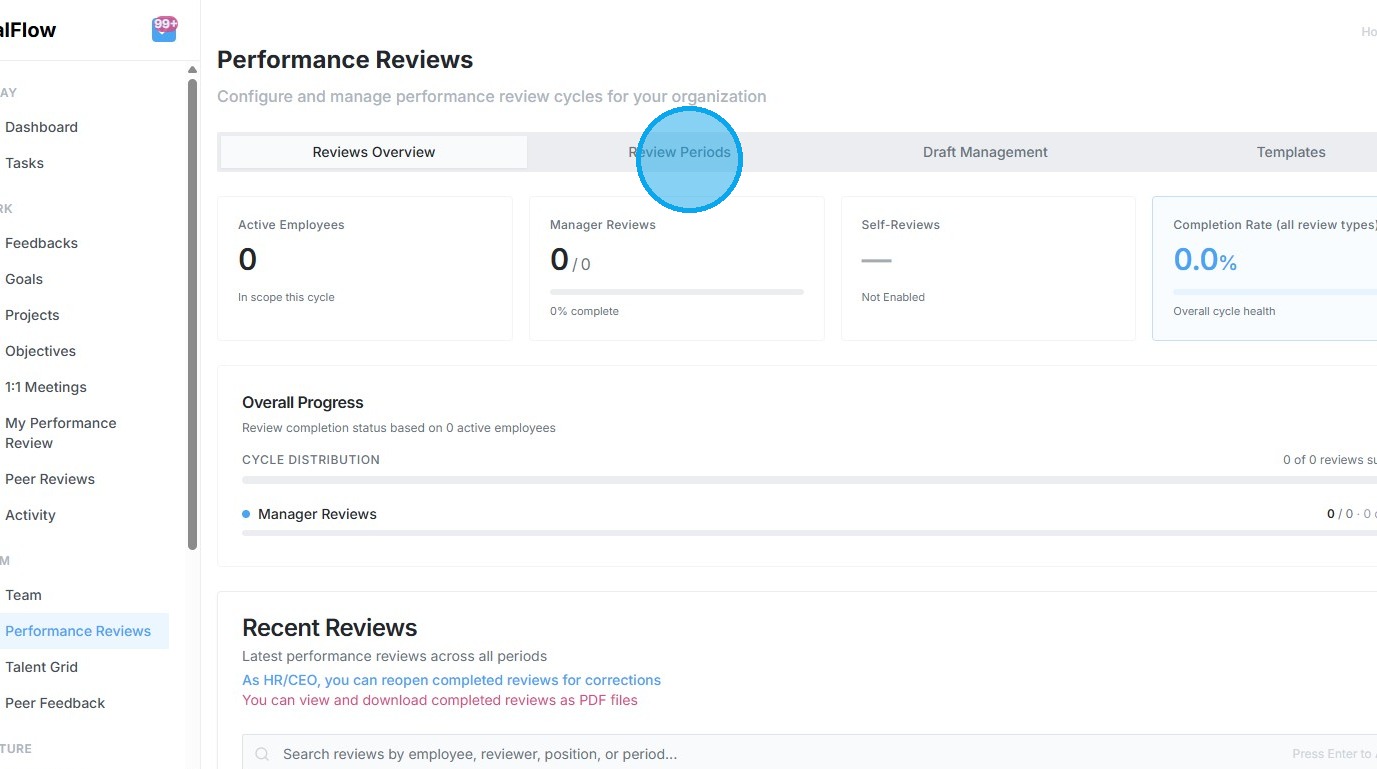
3. Click "Review Periods"
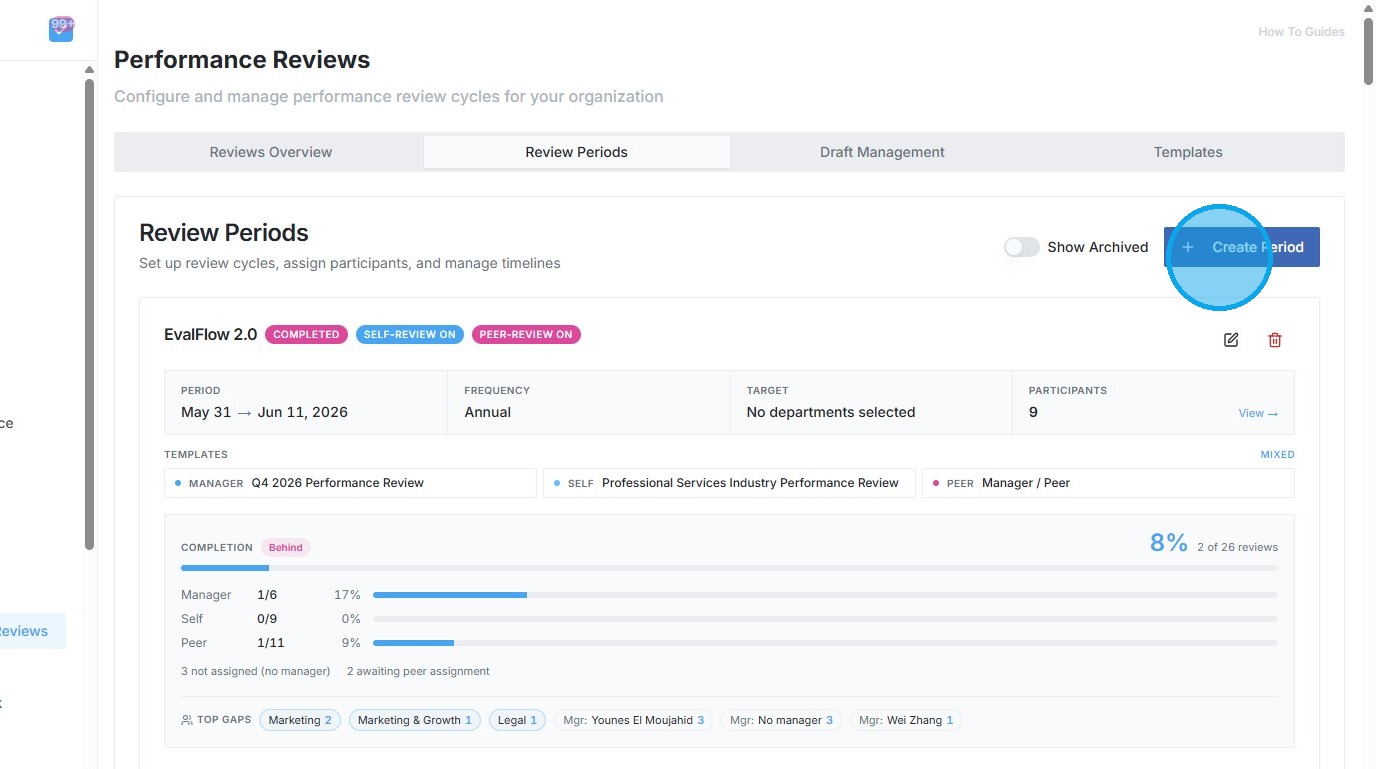
4. Click "Create Period" to open the configuration menu
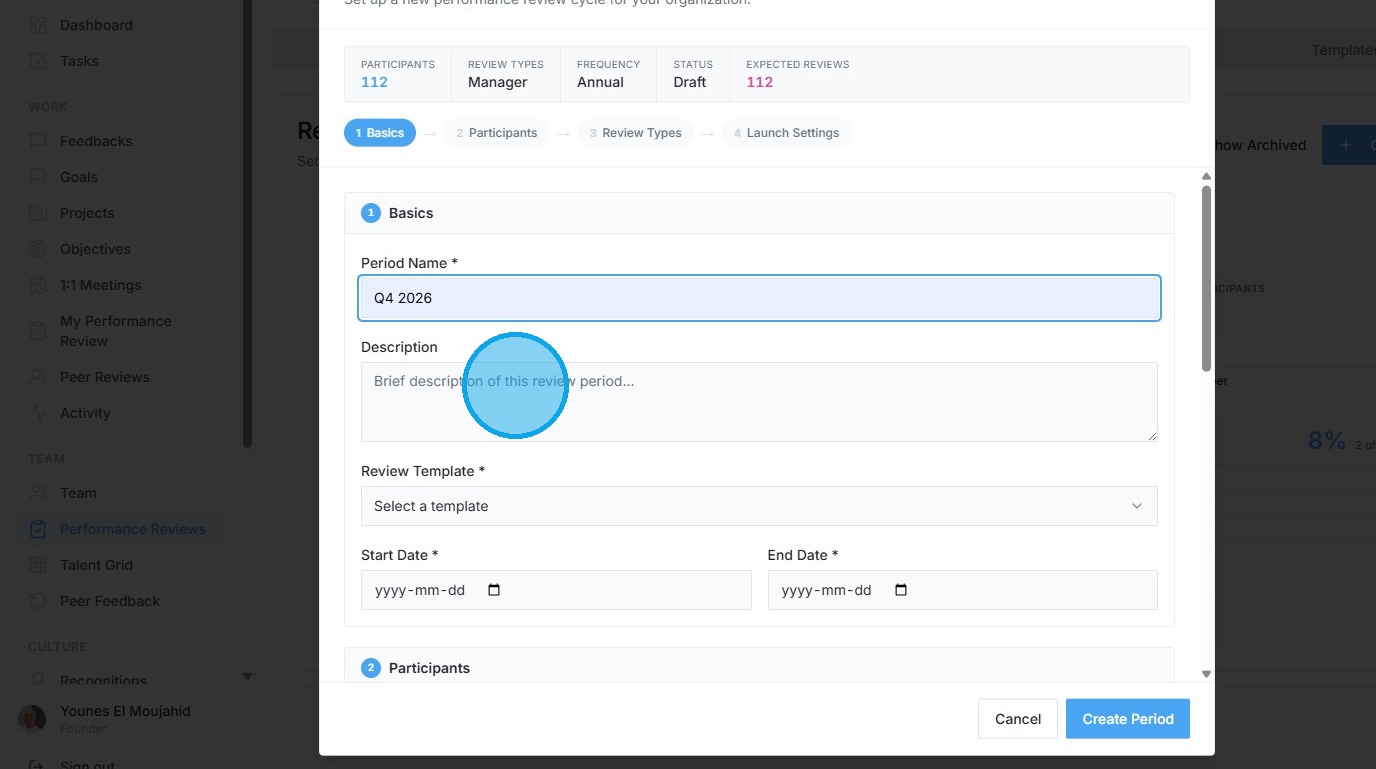
Review Period Basics
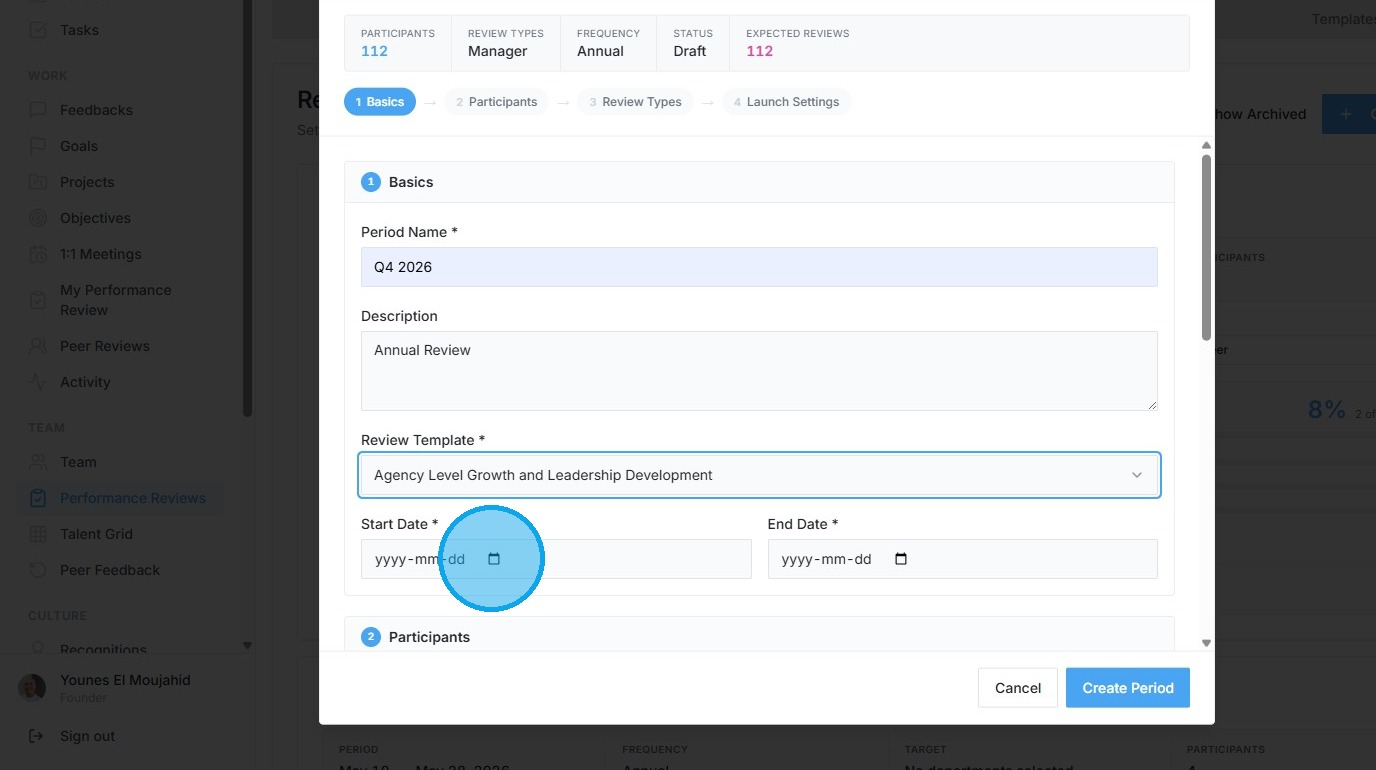
5. Type "Annual Review" into the Description field
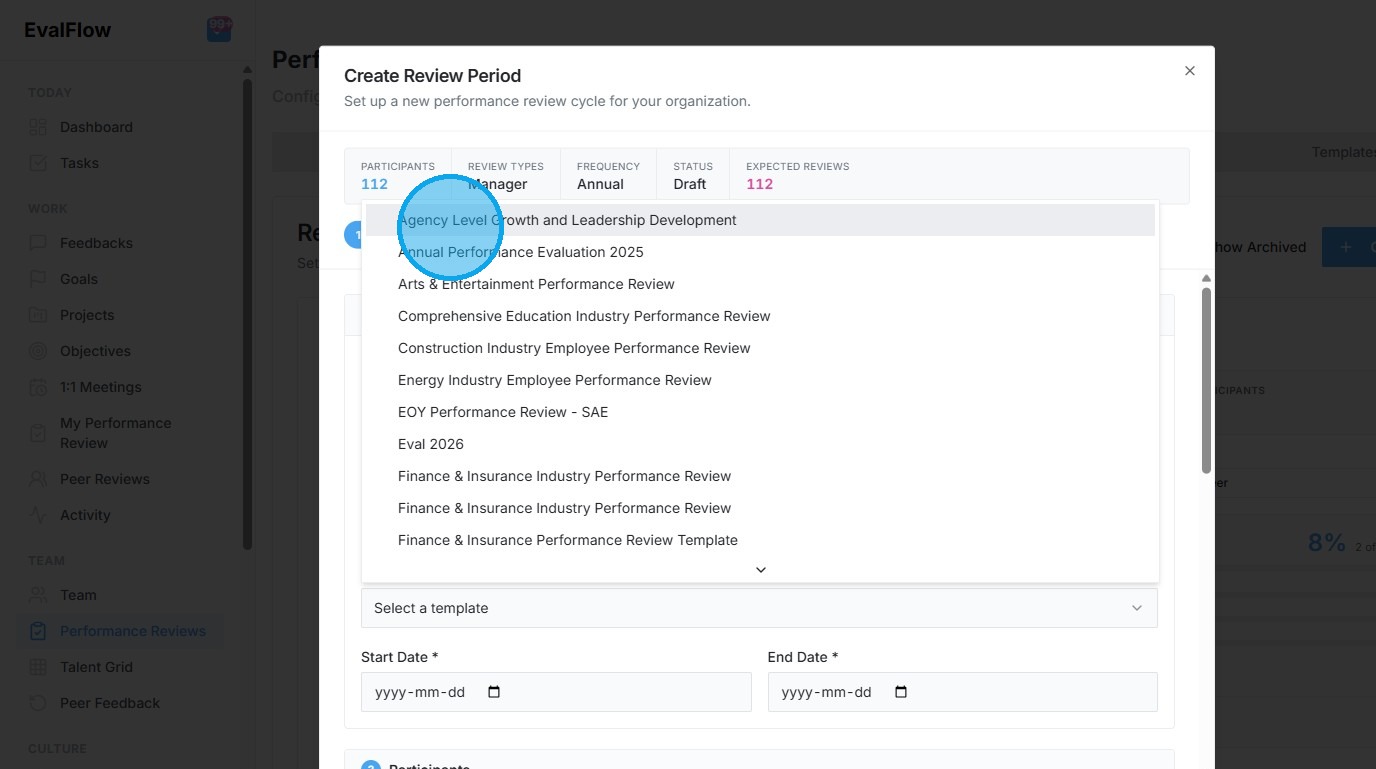
6. Select "Agency Level Growth and Leadership Development" as the Review Template
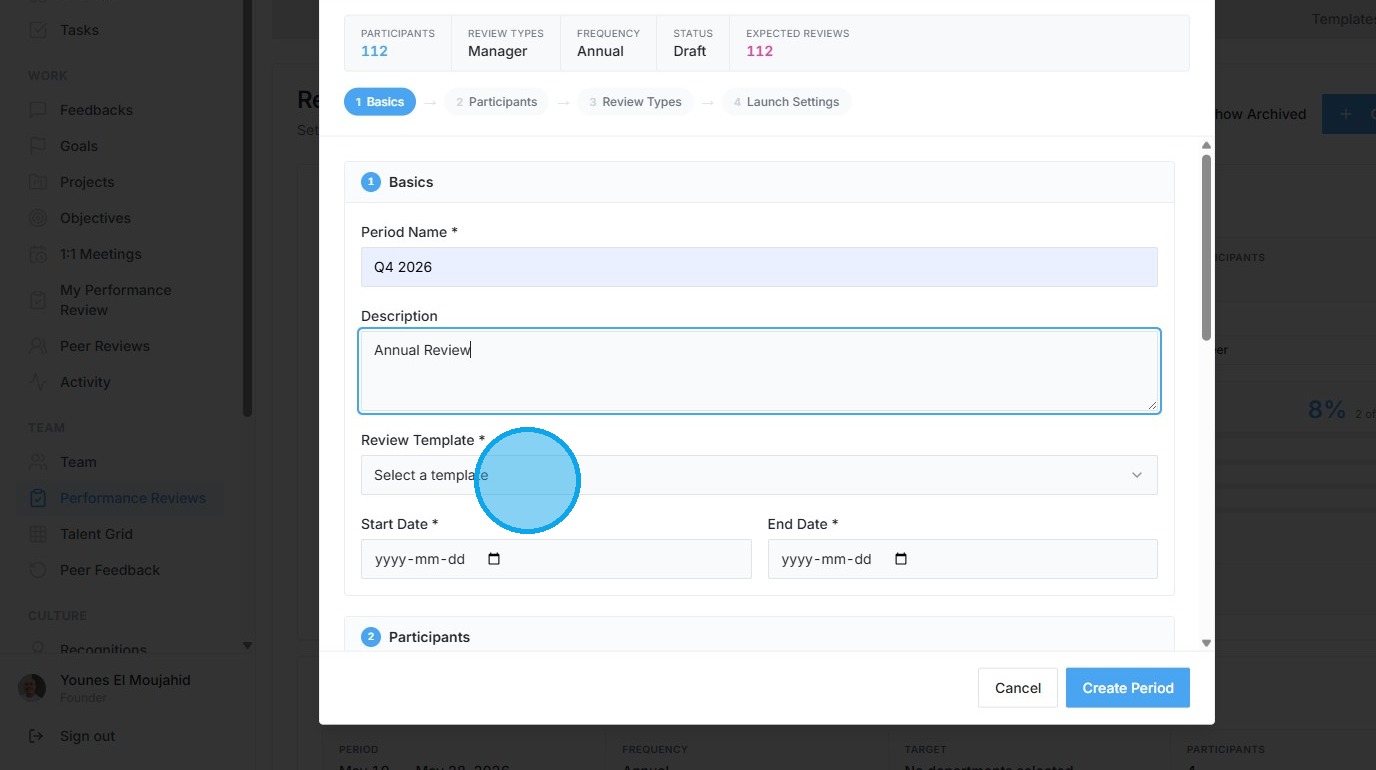
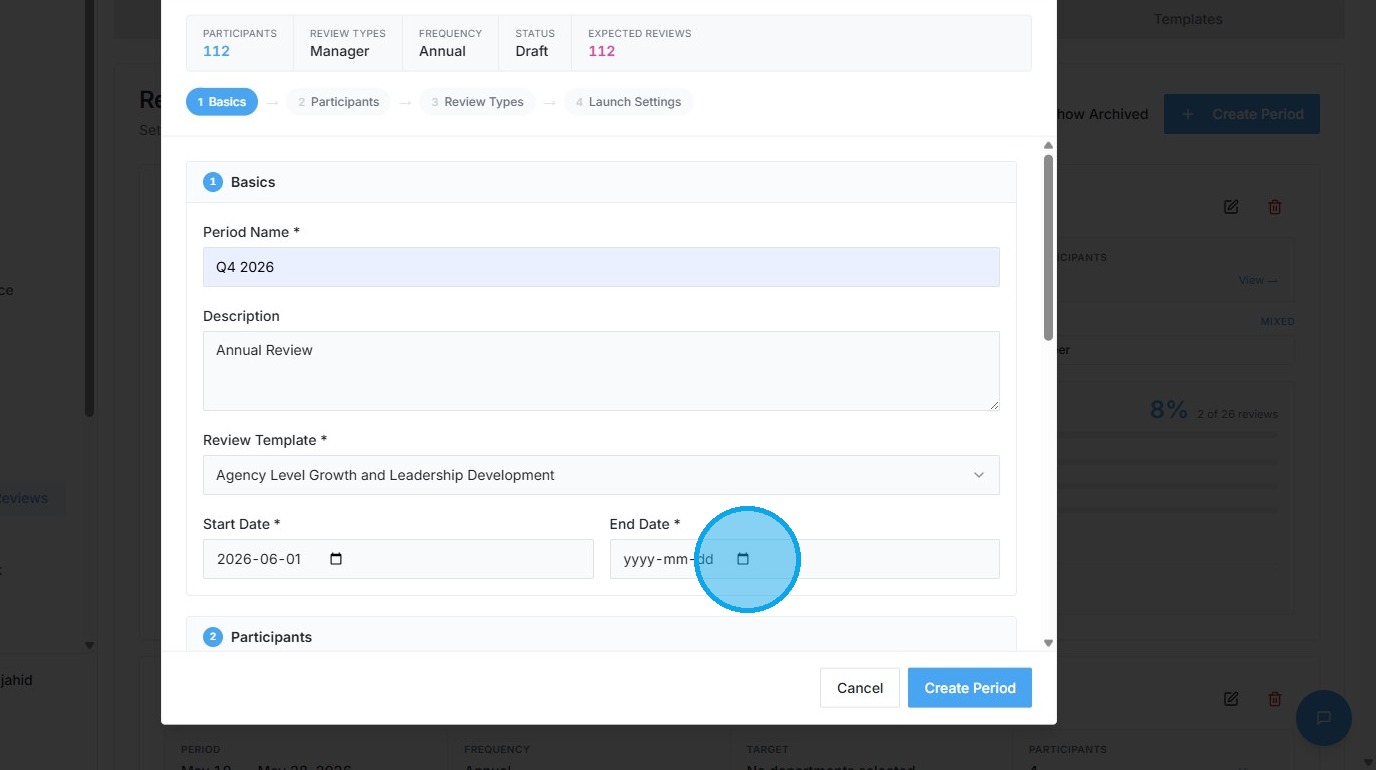
7. Set the Start and End dates for the review cycle
Participant Selection
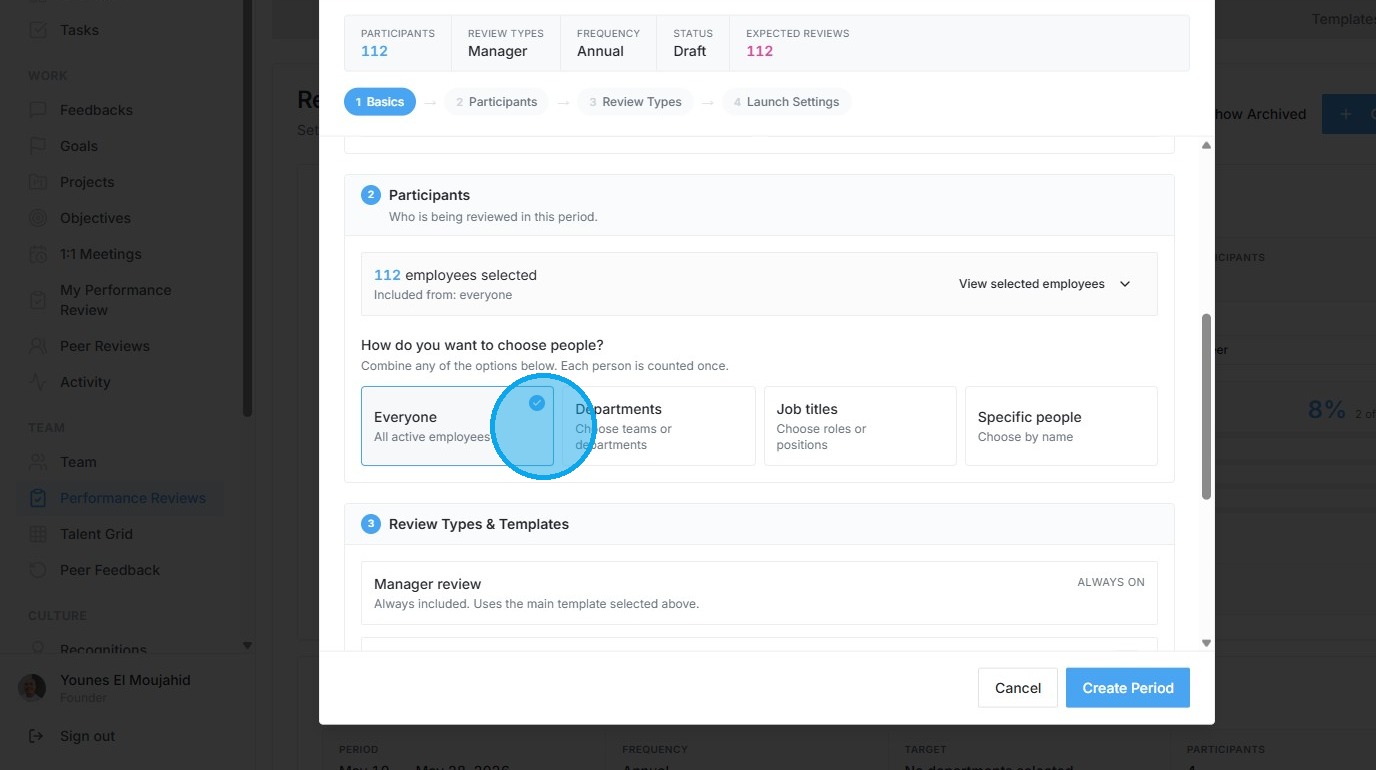
8. Select "Everyone" to include all active employees initially
9. Choose "Departments" to select participants by team
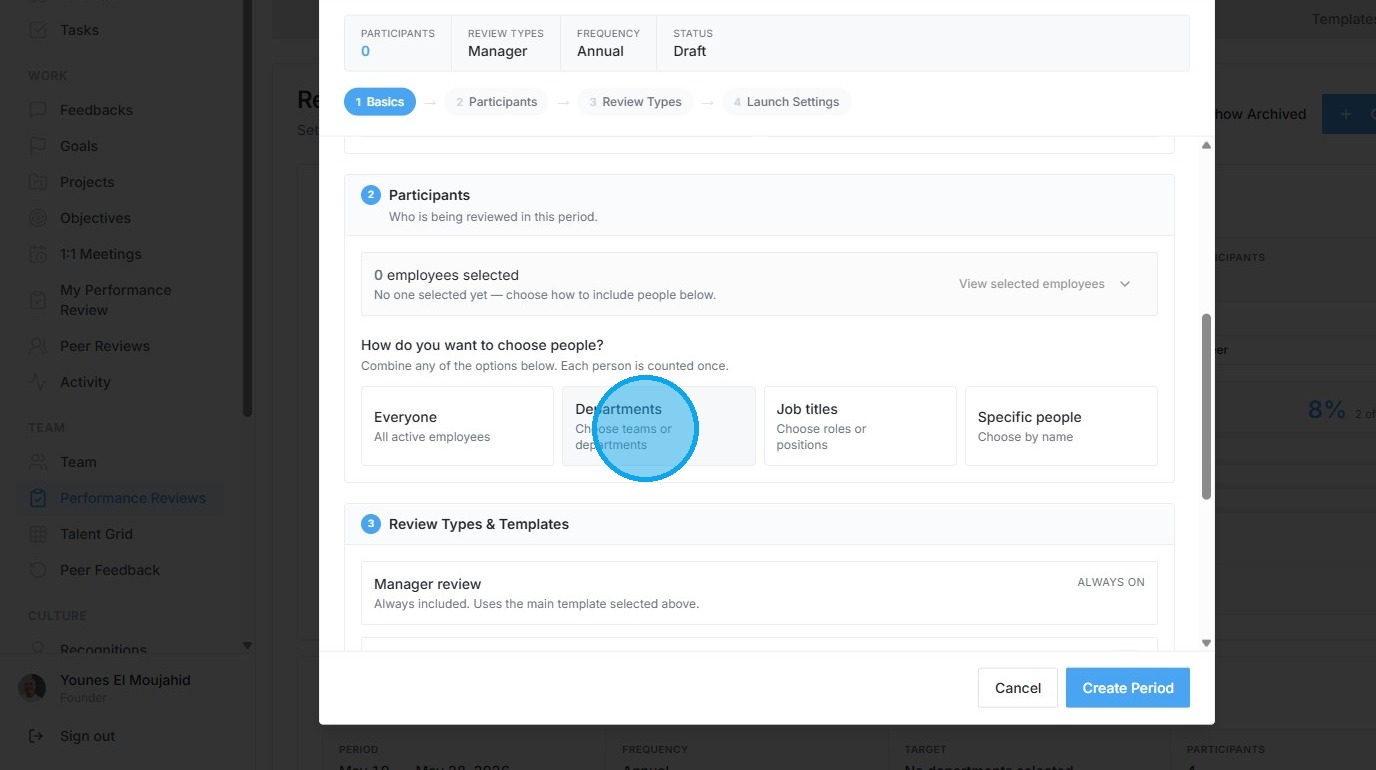
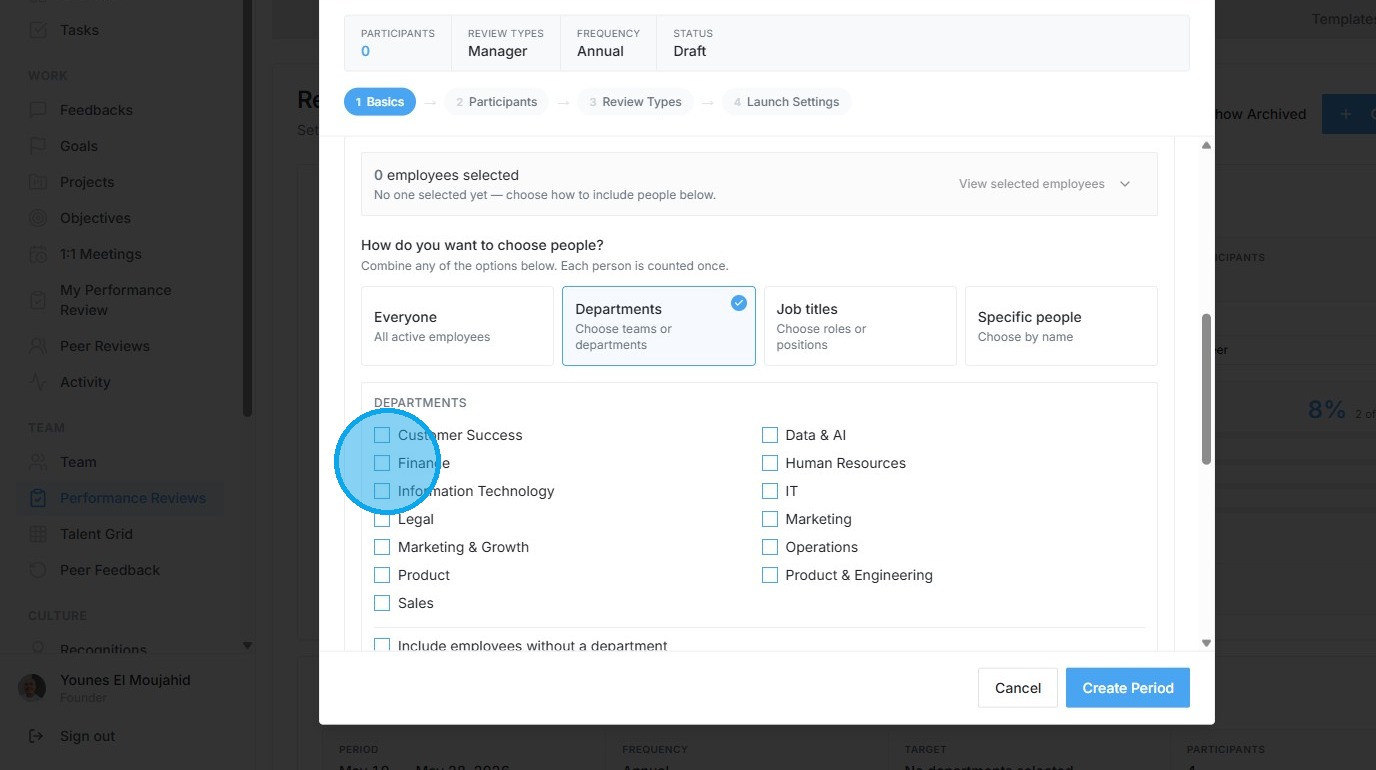
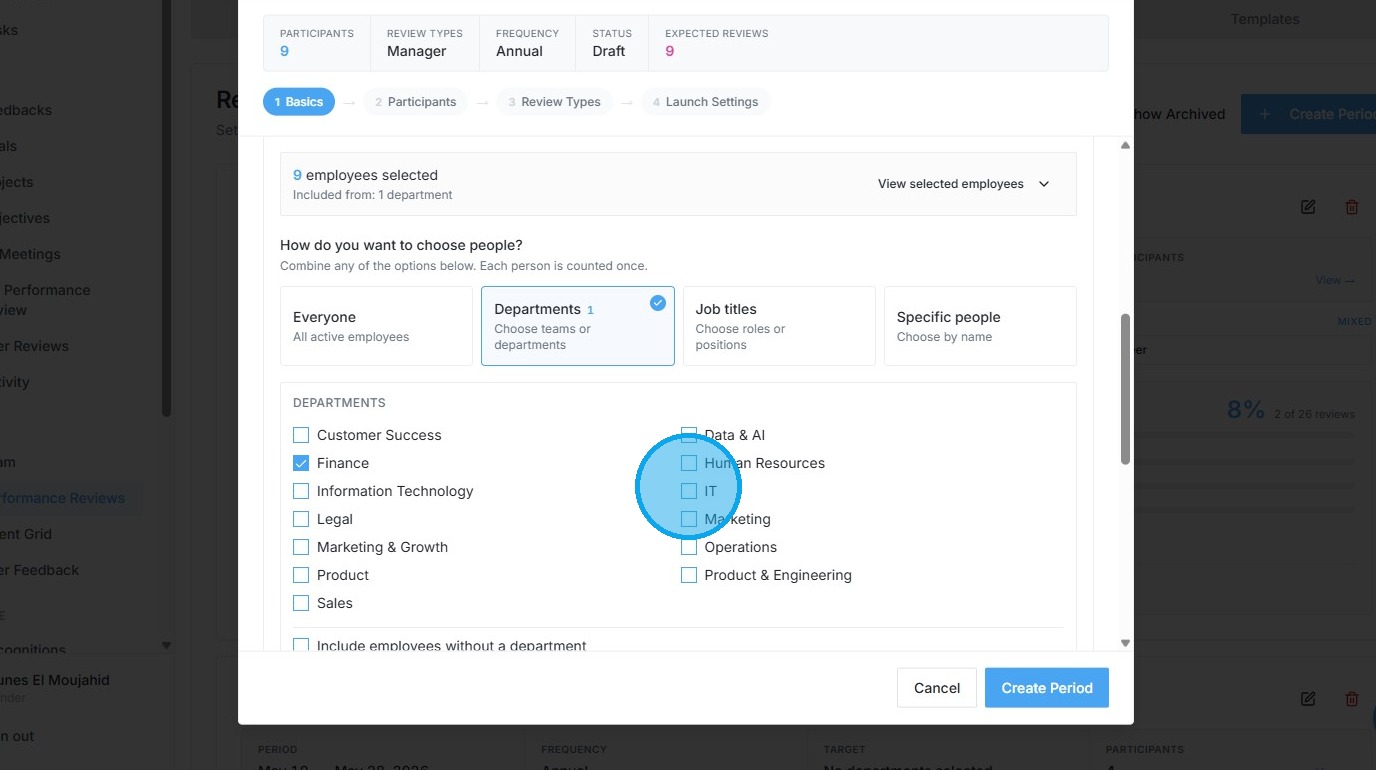
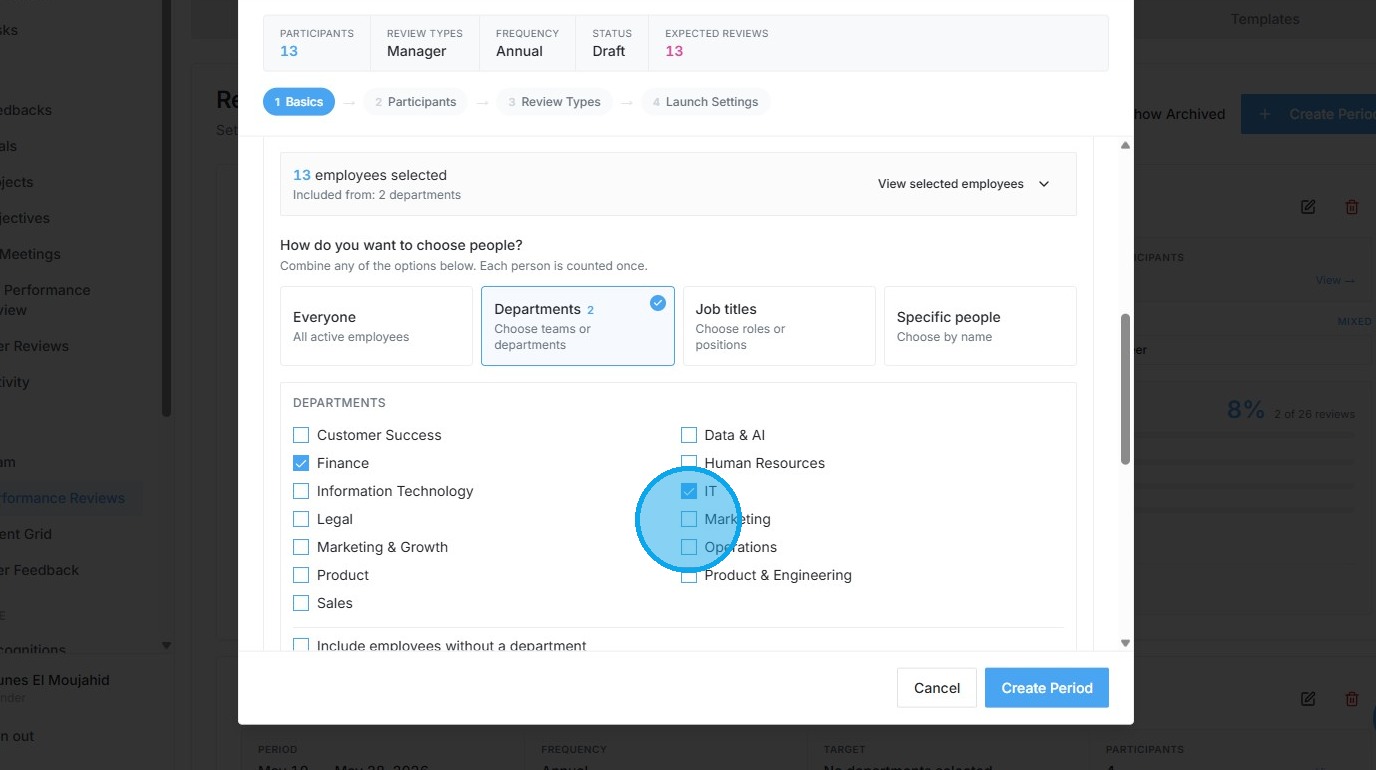
10. Select the "Finance" and "IT" departments
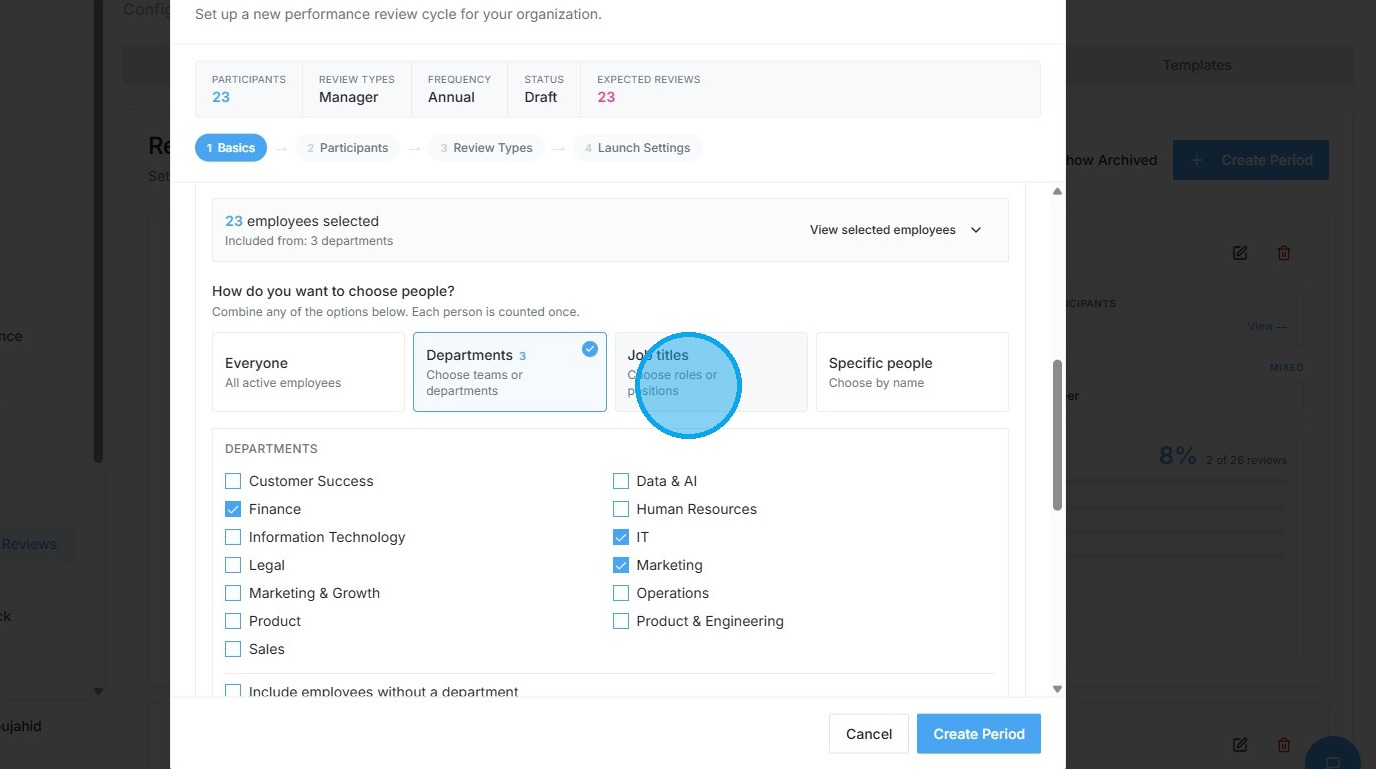
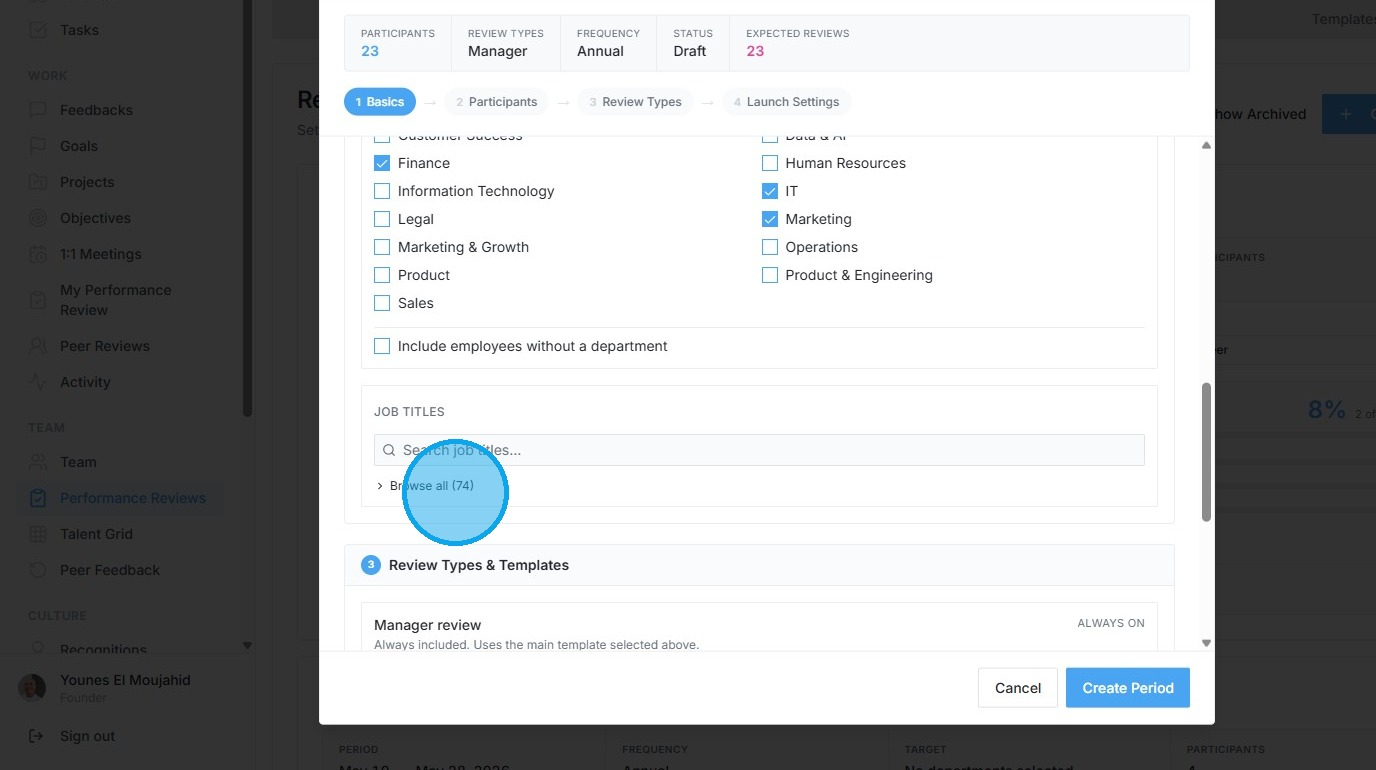
11. Expand the "Job Titles" selection list
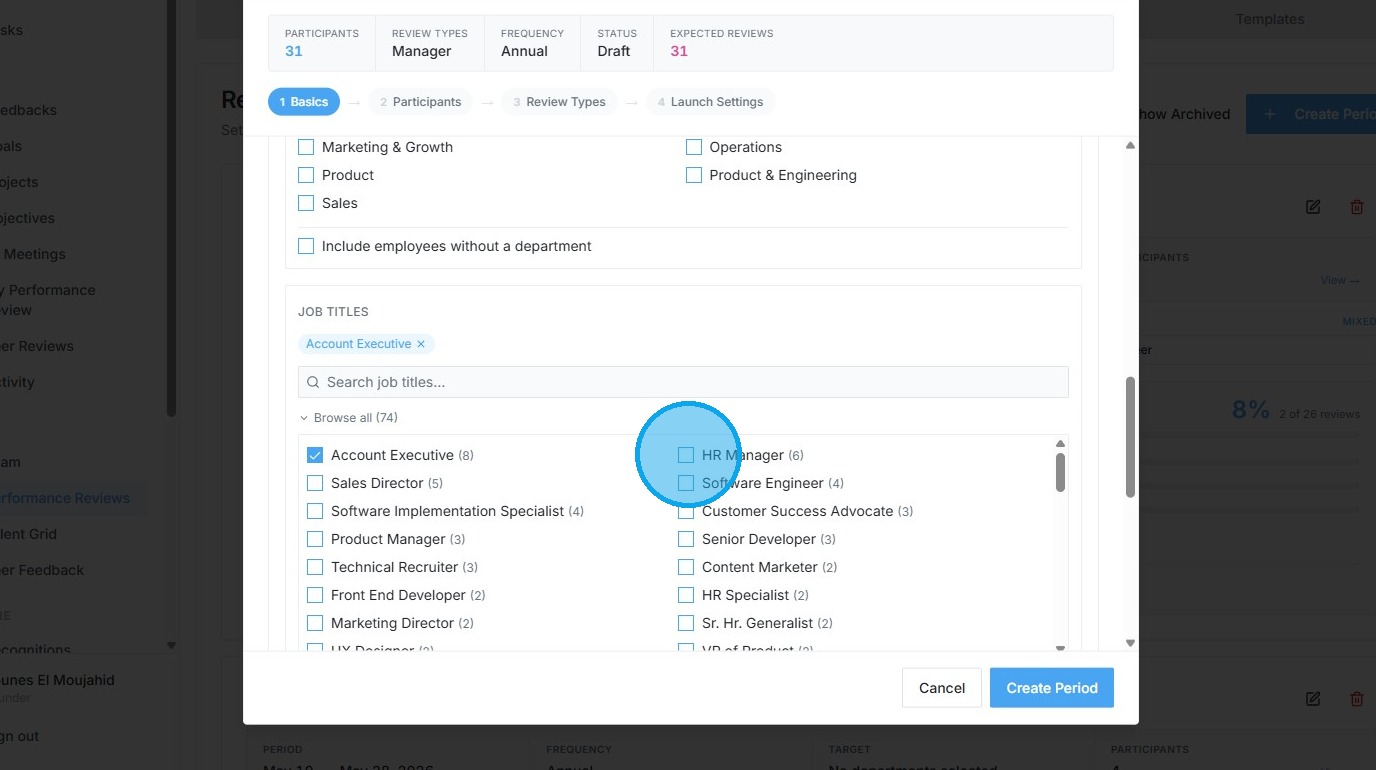
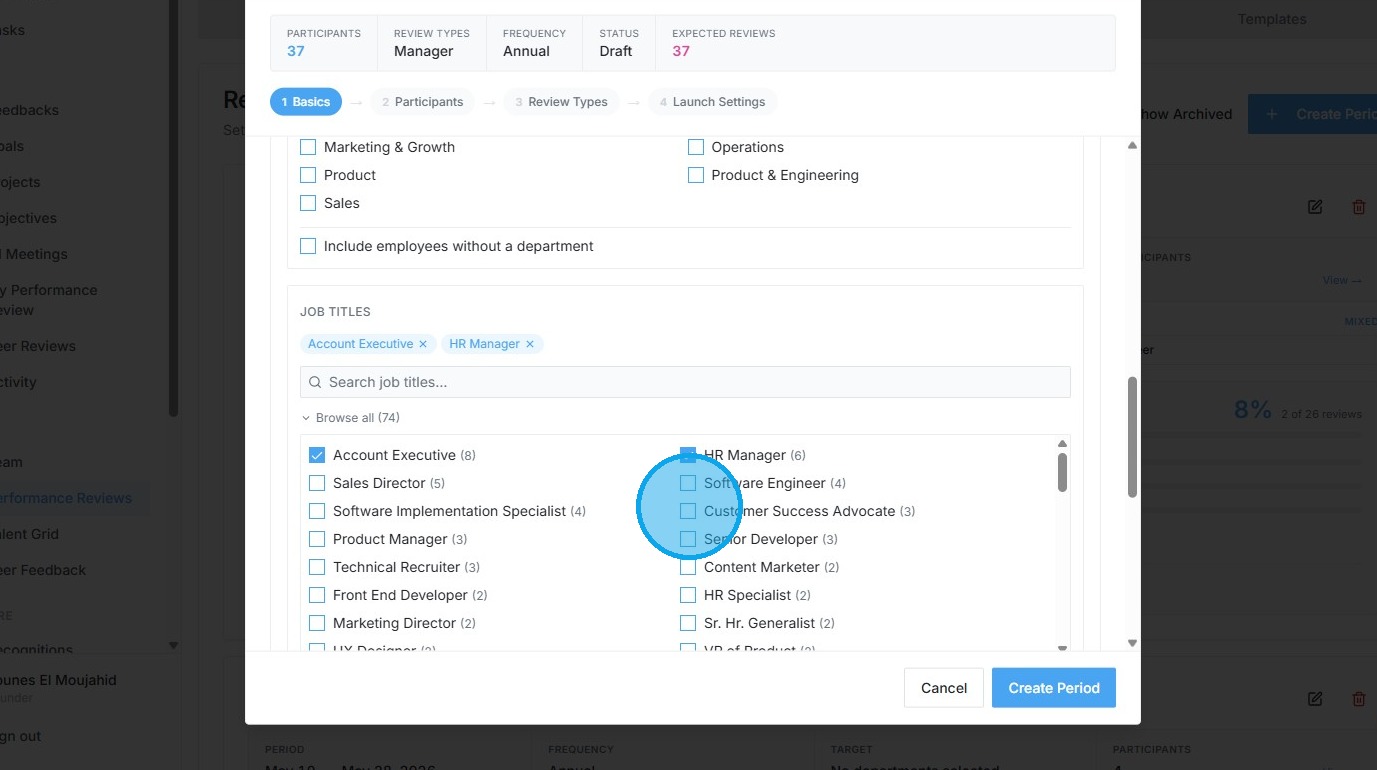
12. Select the "Account Executive" and "HR Manager" job titles
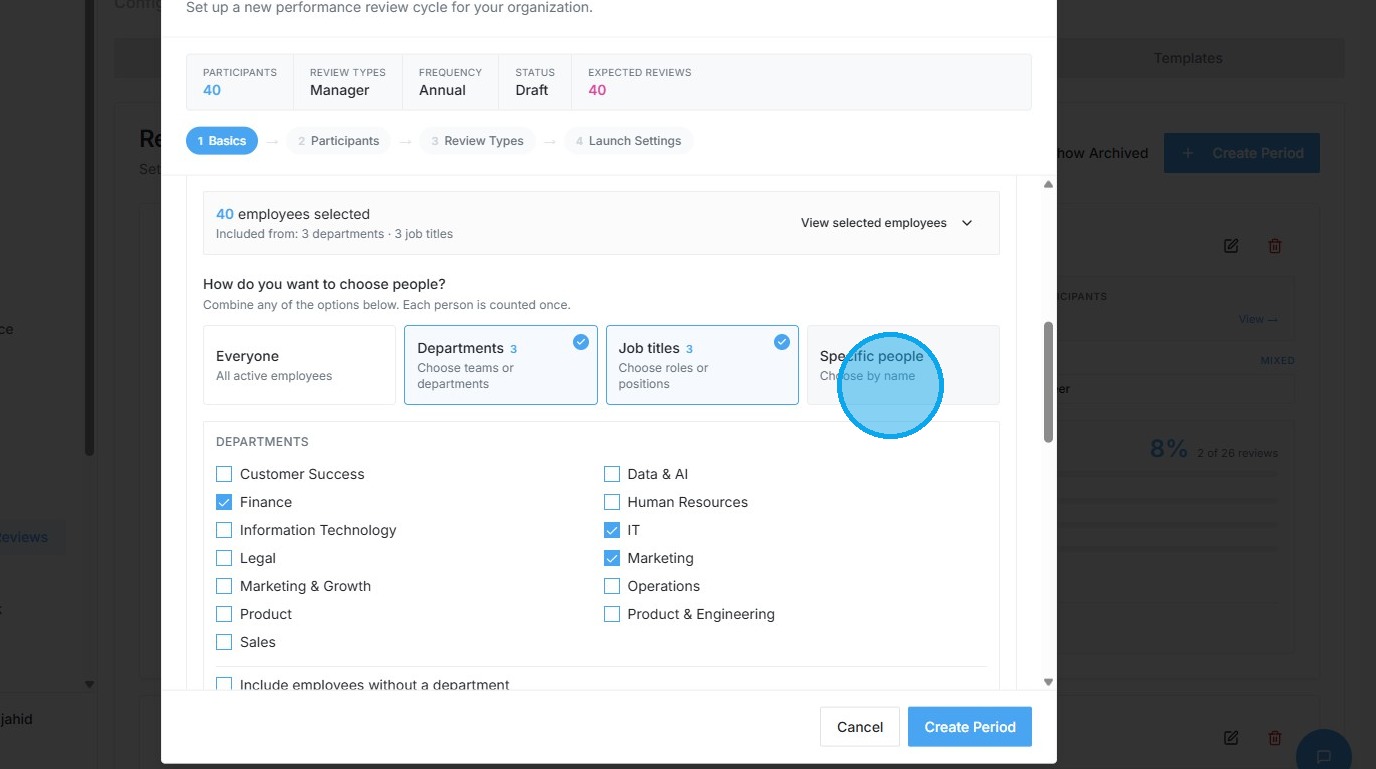
13. Expand the "Specific People" selection list
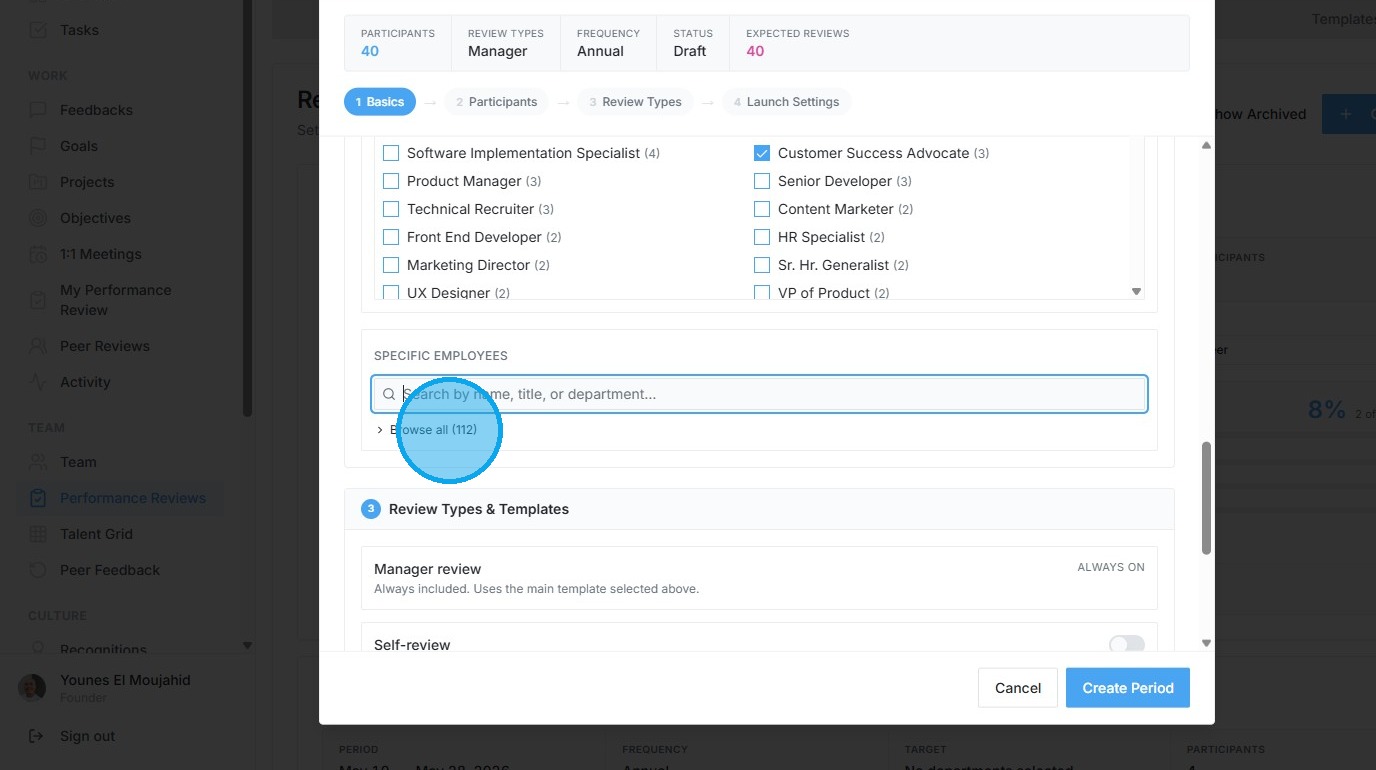
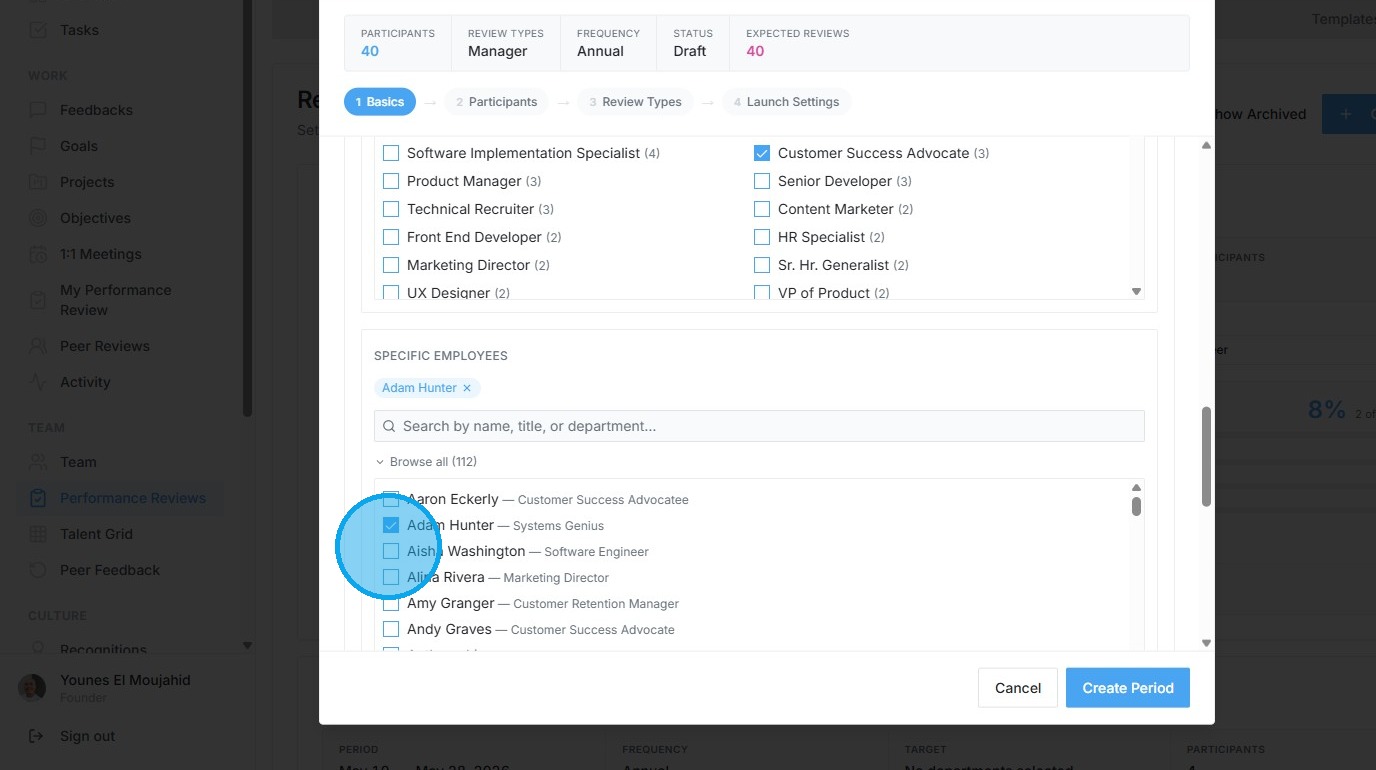
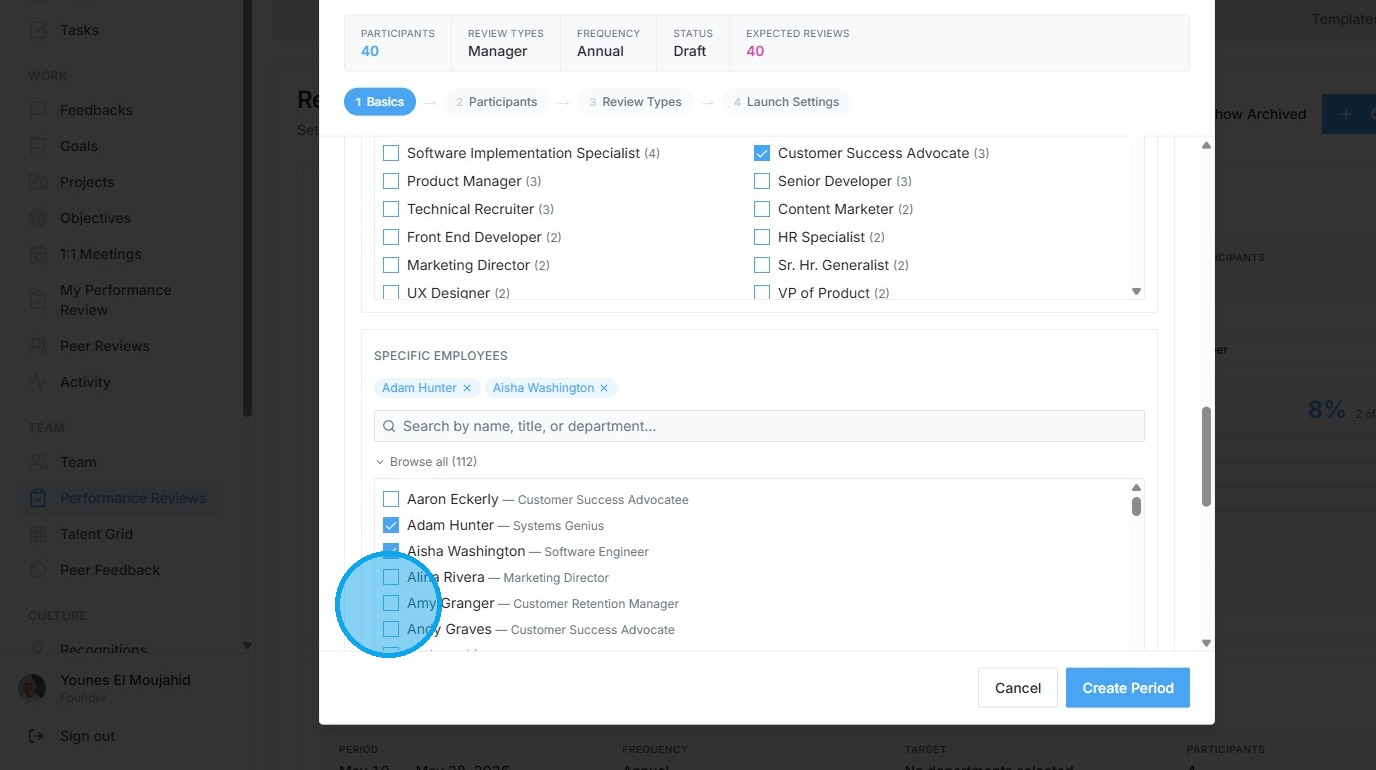
14. Select "Adam Hunter" and "Aisha Washington" as specific participants
Review Types and Settings
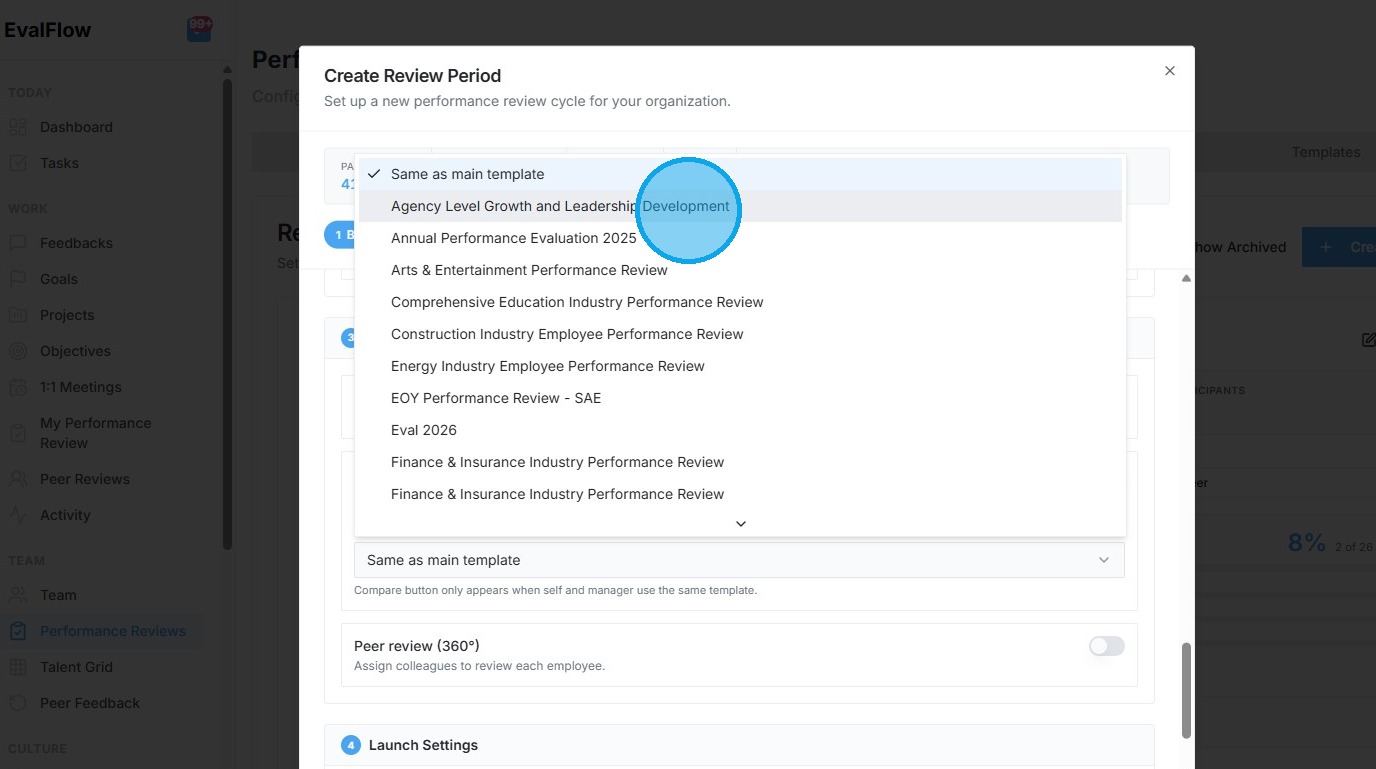
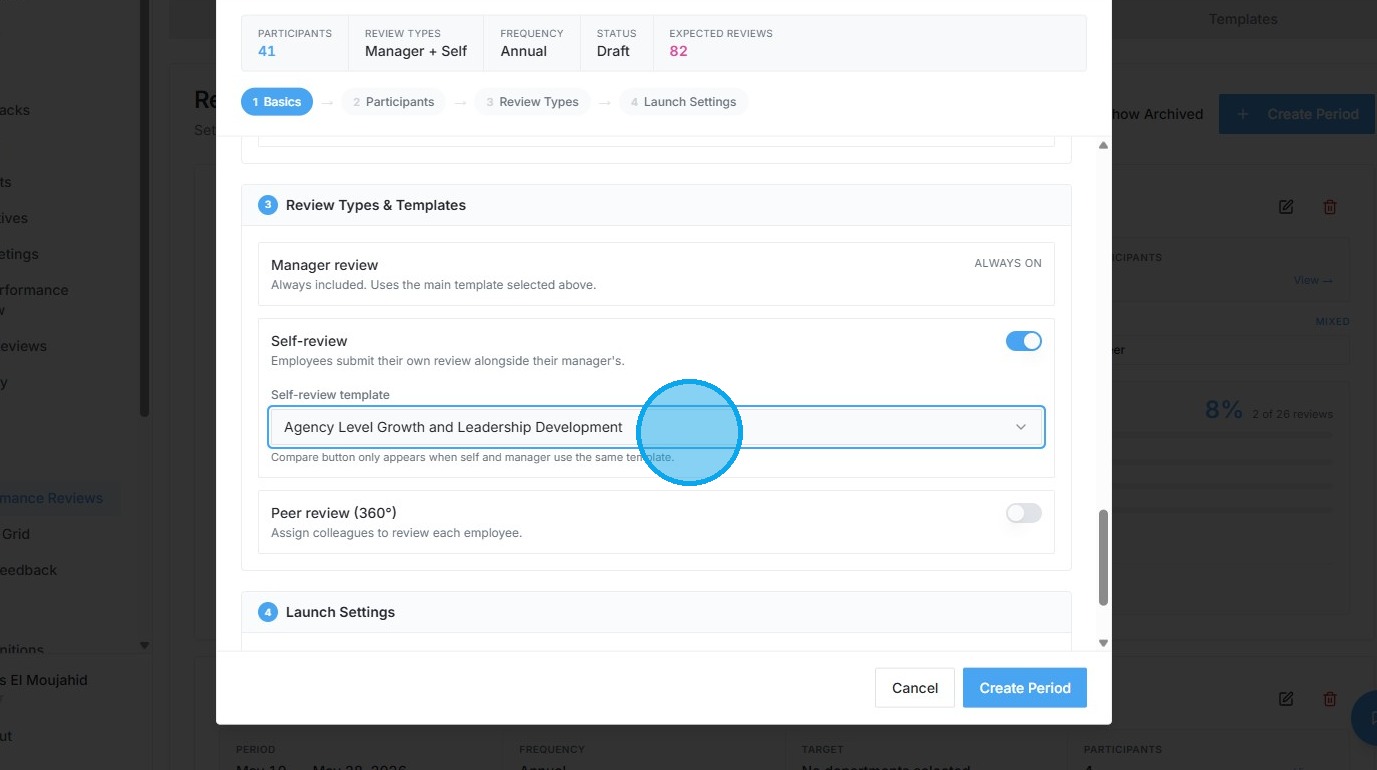
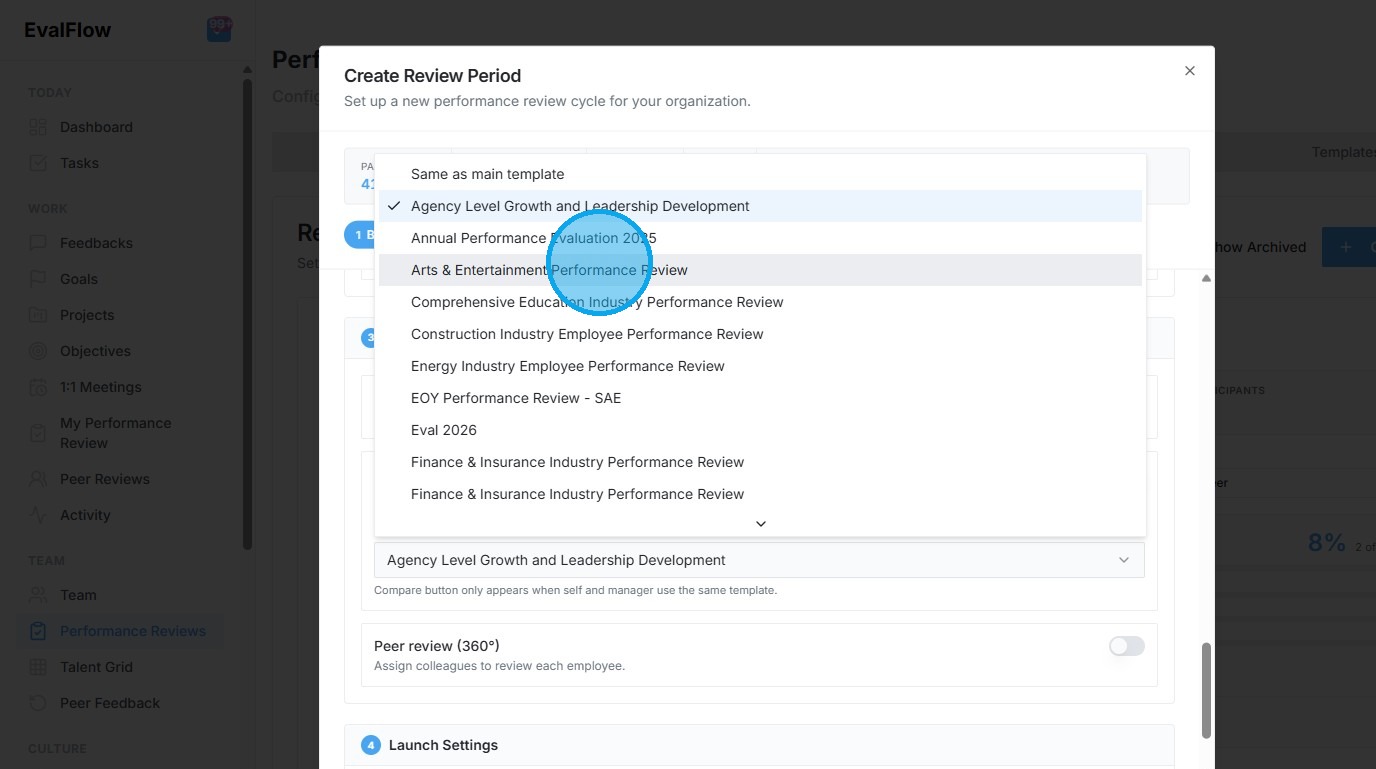
15. Select "Arts & Entertainment Performance Review" as the self-review template
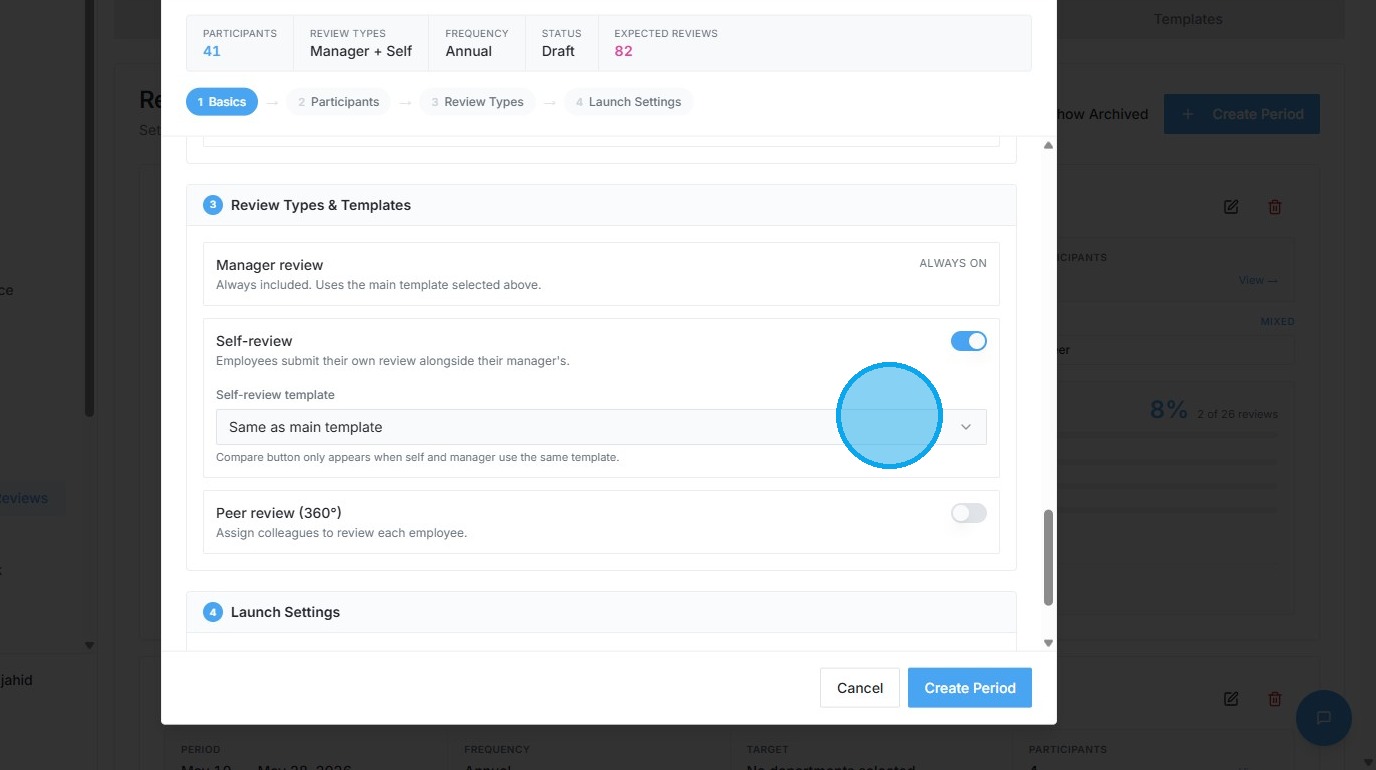
16. Toggle on "Peer review (360°)" to enable peer assessments
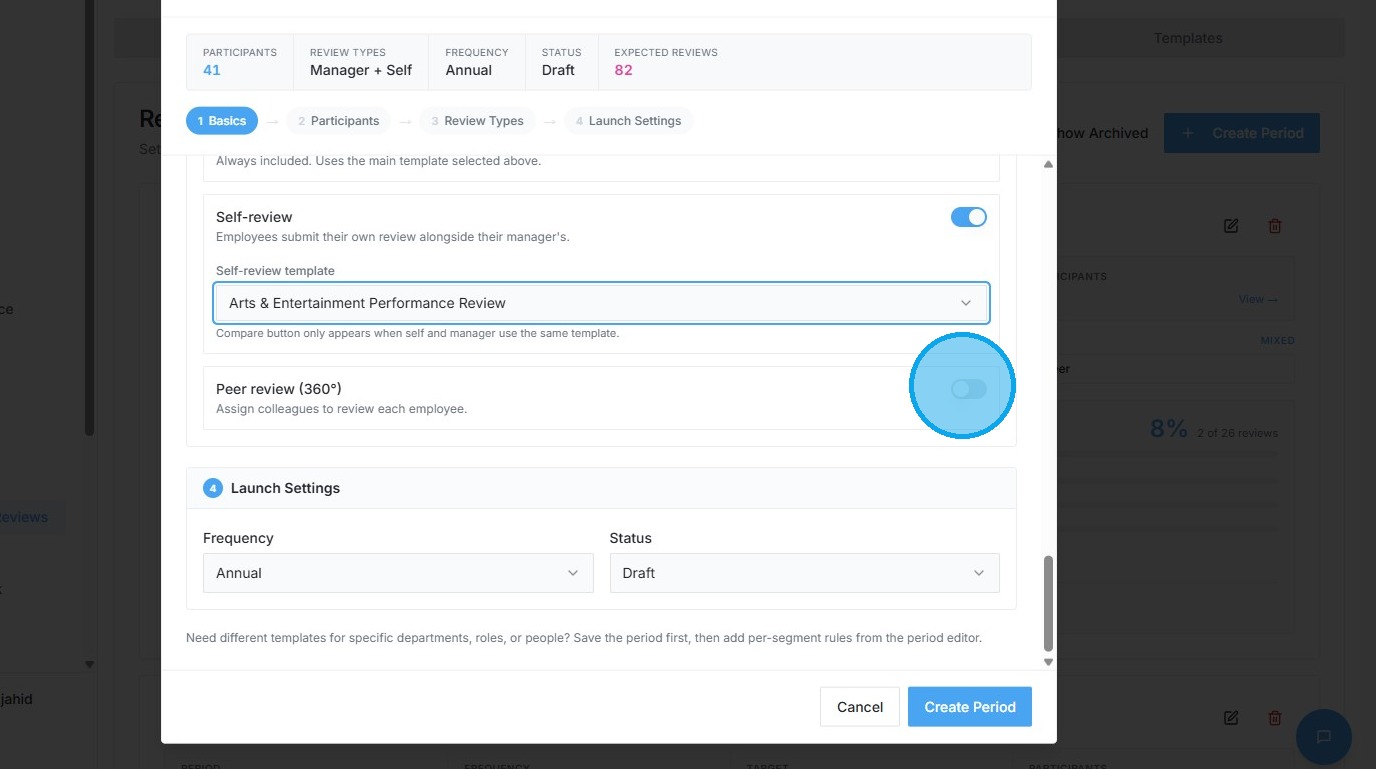
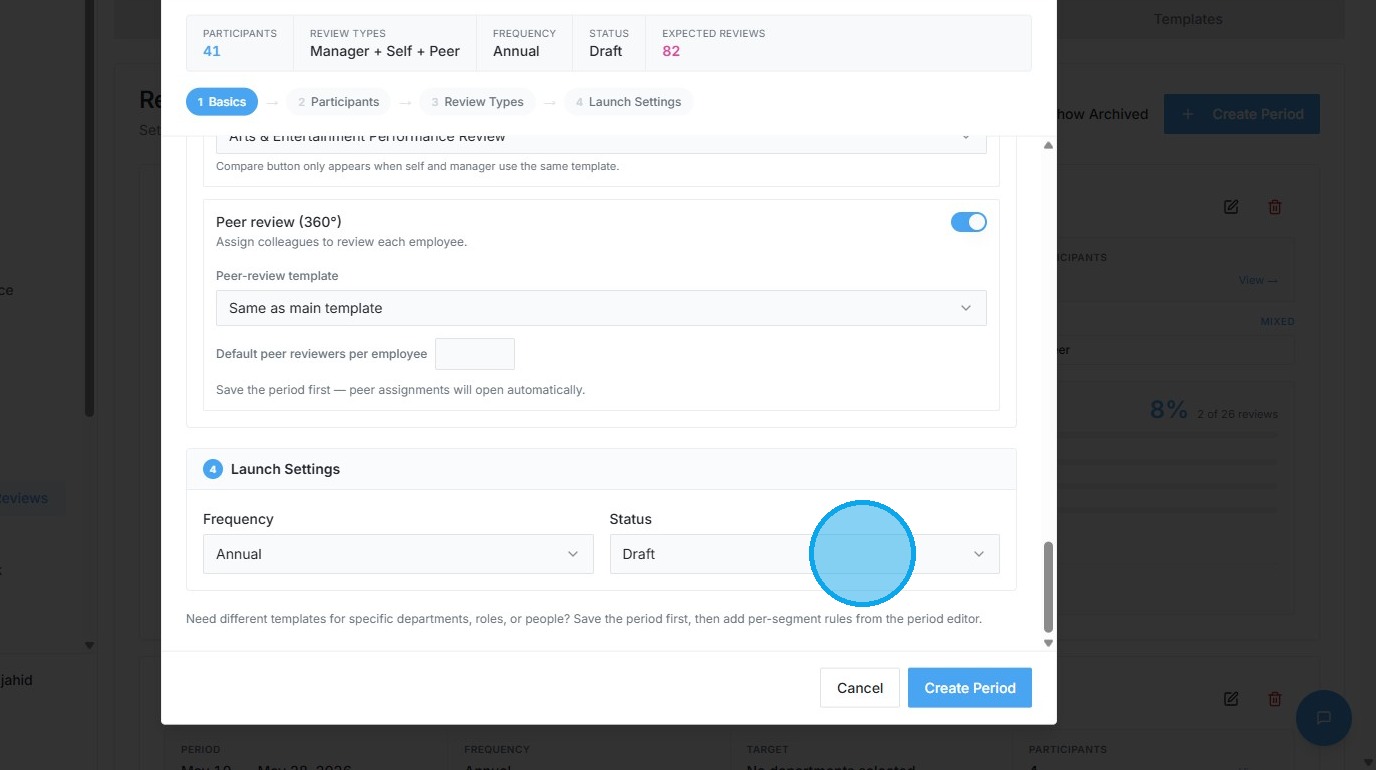
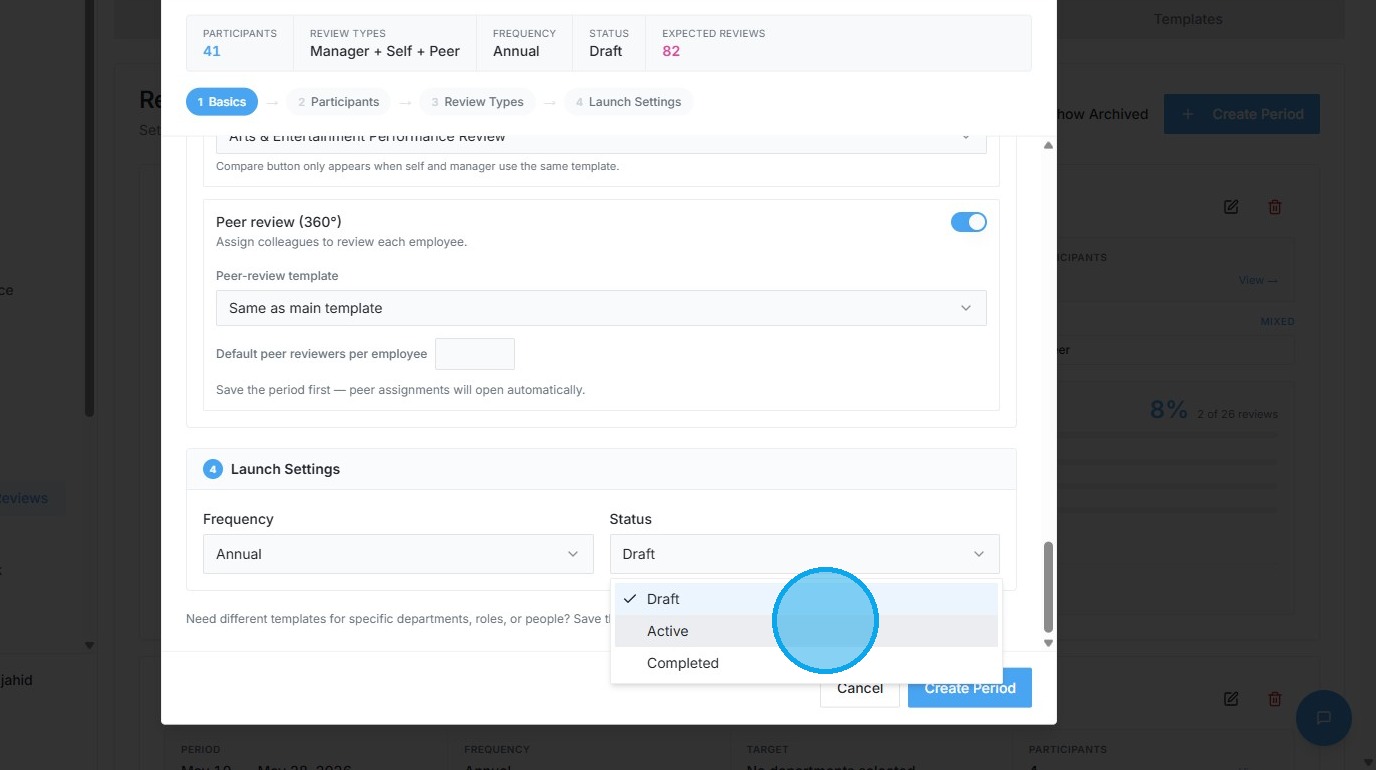
17. Set the review period status to "Active"
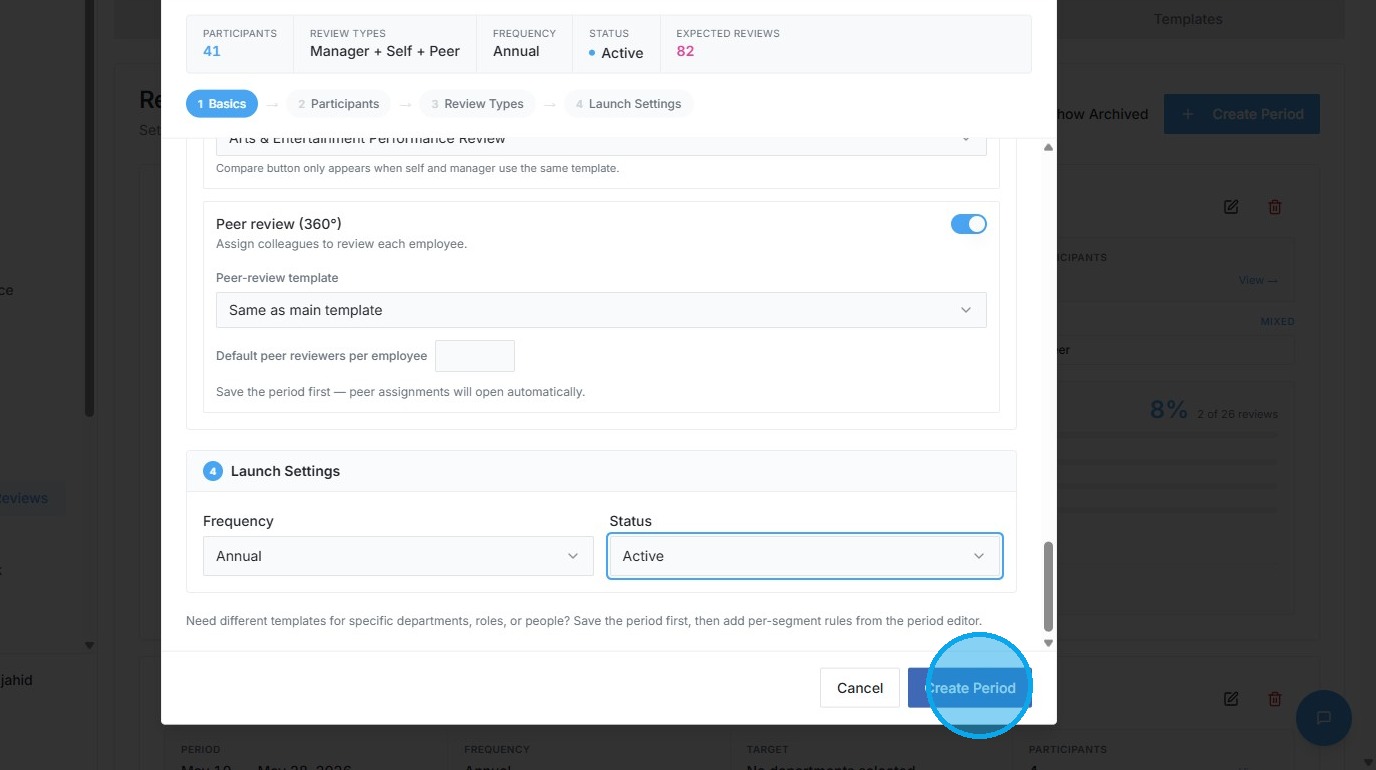
18. Click "Create Period" to finalize the setup
Peer Review Assignments
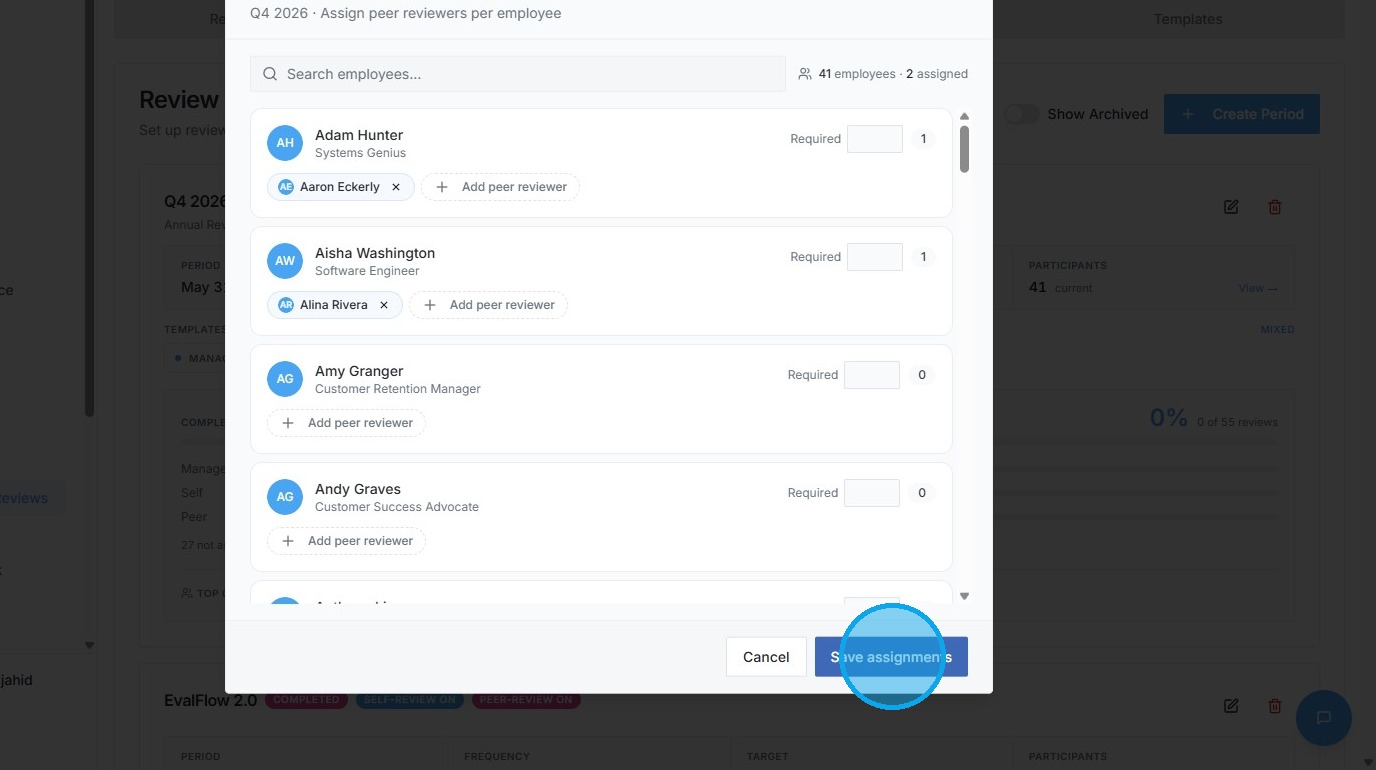
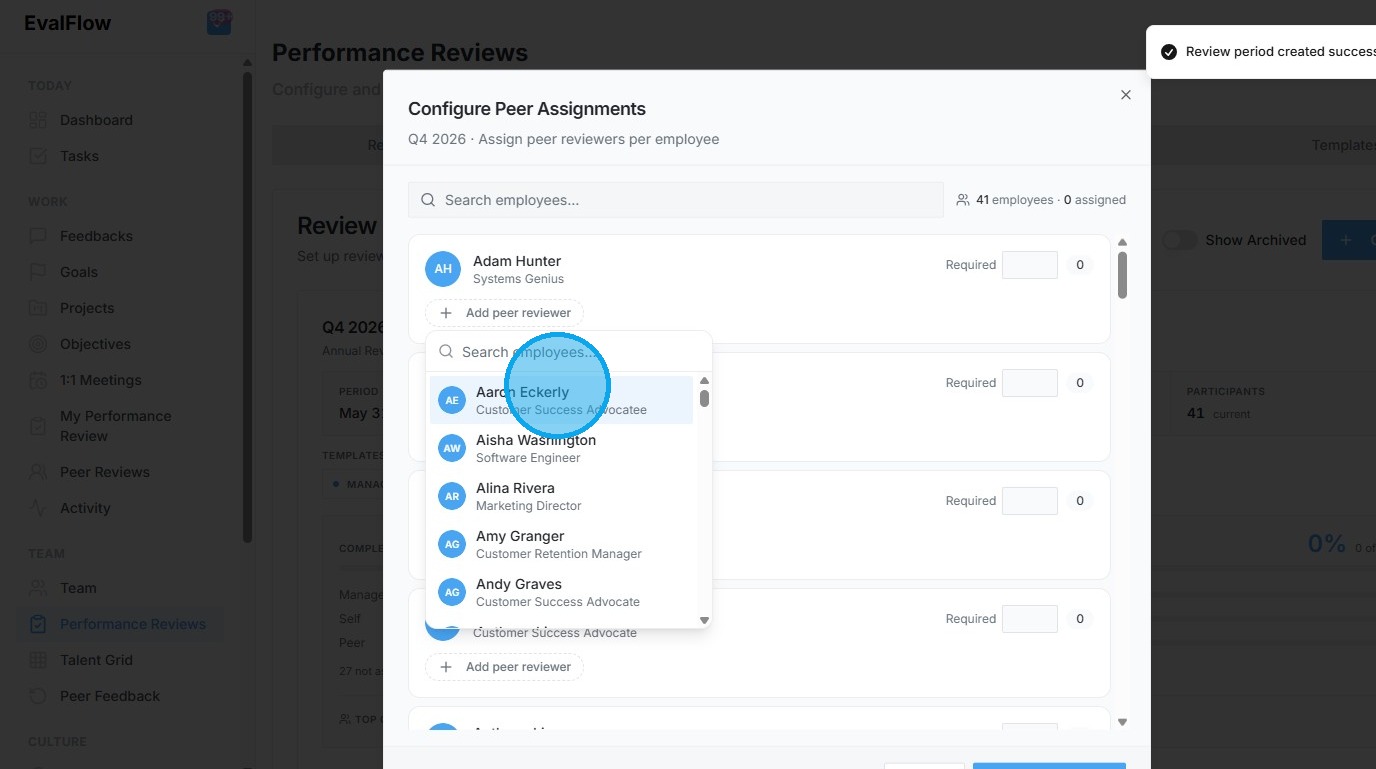
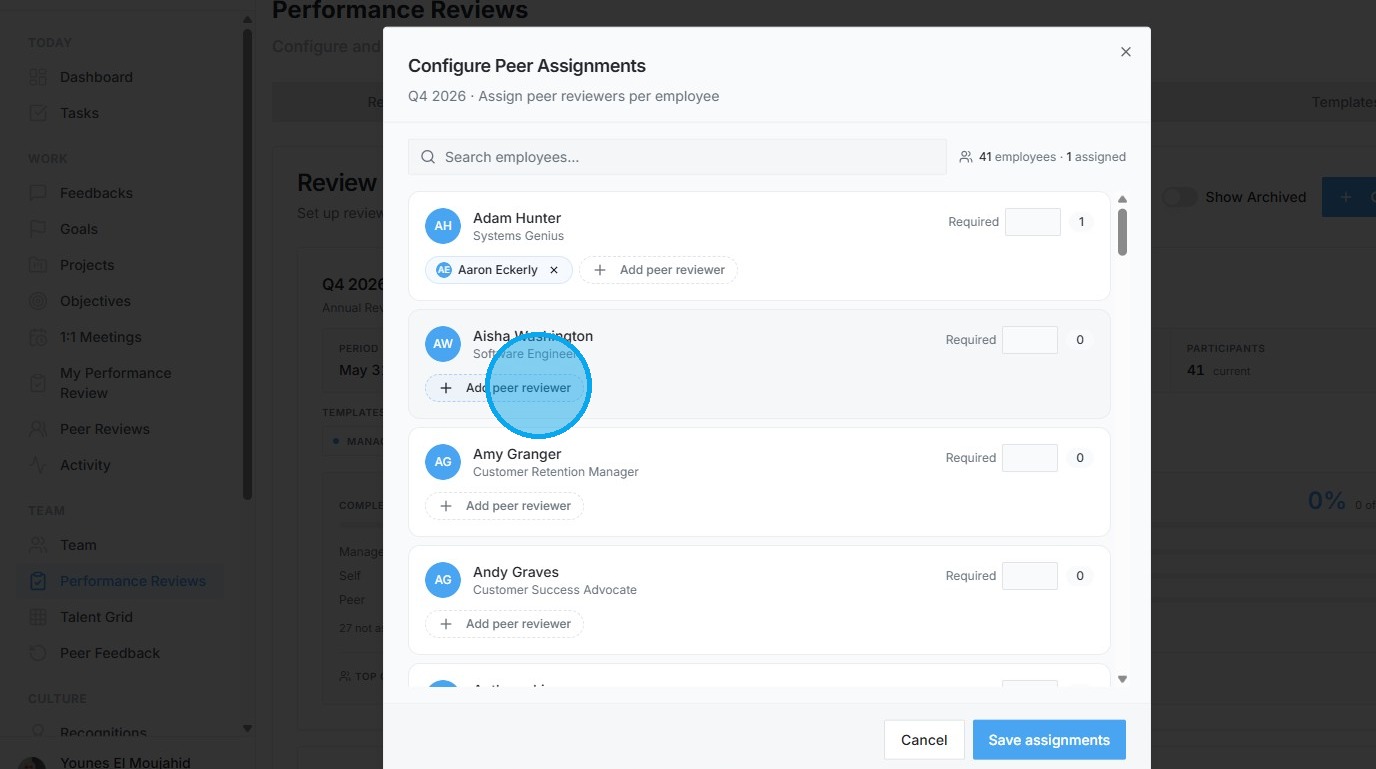
19. Assign "Aaron Eckerly" as a peer reviewer for "Adam Hunter"
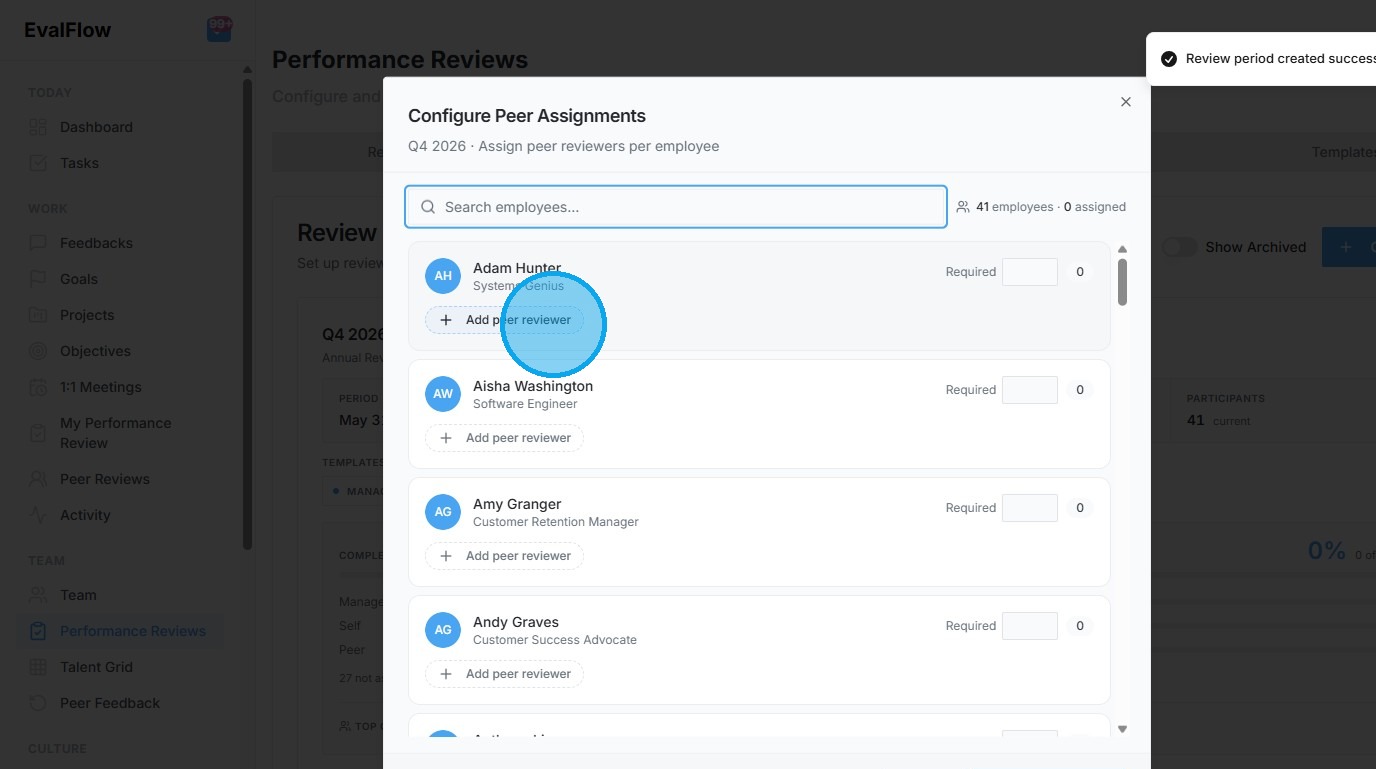
20. Assign "Alina Rivera" as a peer reviewer for "Aisha Washington"
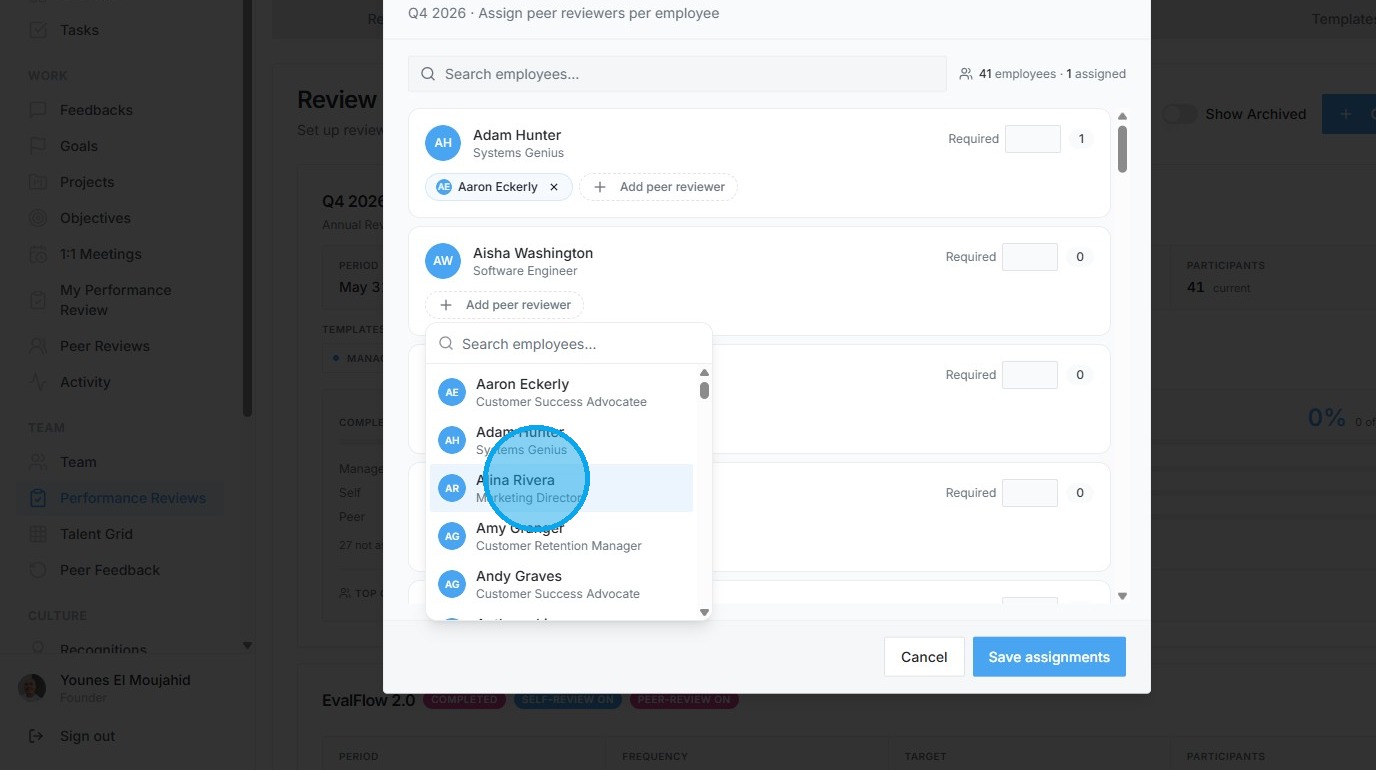
21. Click "Save assignments" to complete the peer reviewer setup