How to Navigate the Dashboard in EvalFlow
Learn how to efficiently manage your performance reviews and track team feedback using the EvalFlow dashboard. This guide walks you through navigating analytics, sorting feedback, and viewing detailed sentiment reports for your team members.
Navigation and Action Items
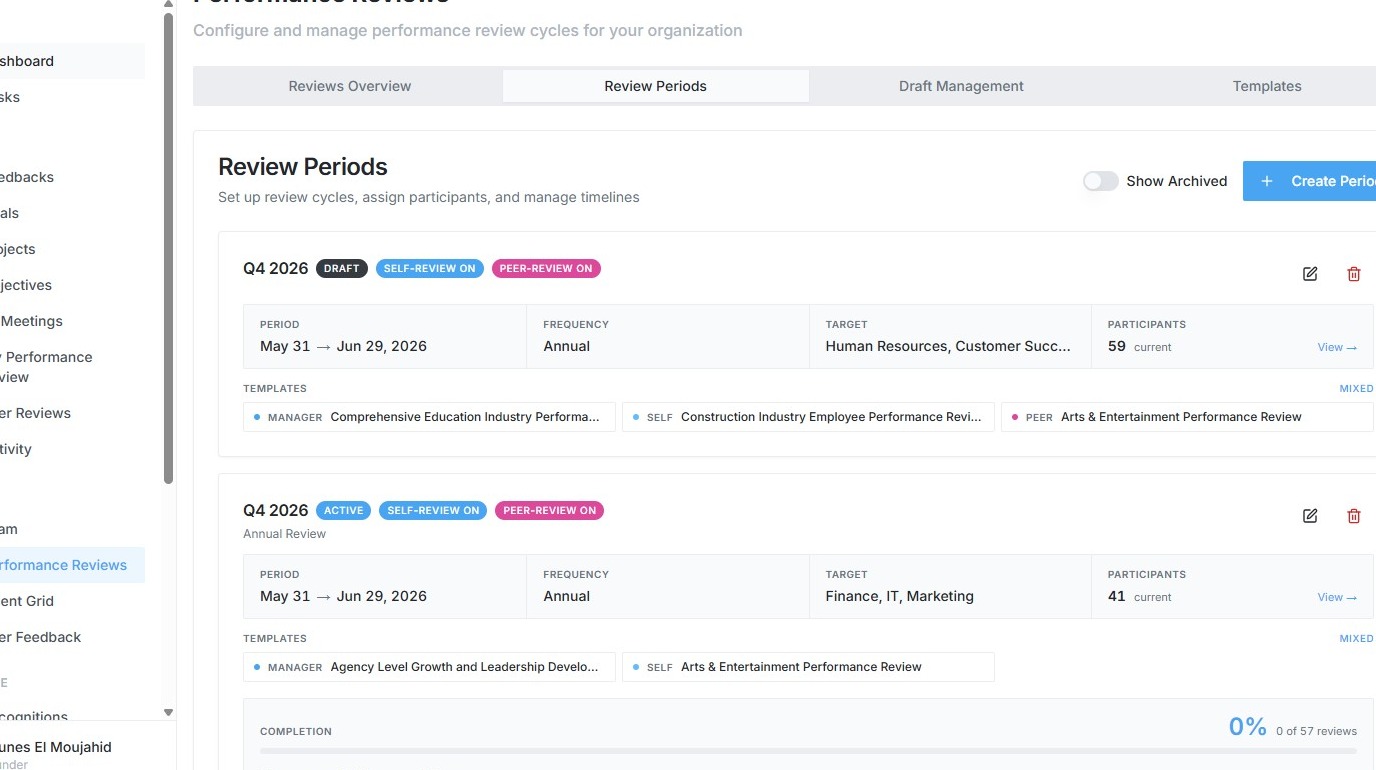
1. Navigate to https://app.evalflow.com/performance-reviews
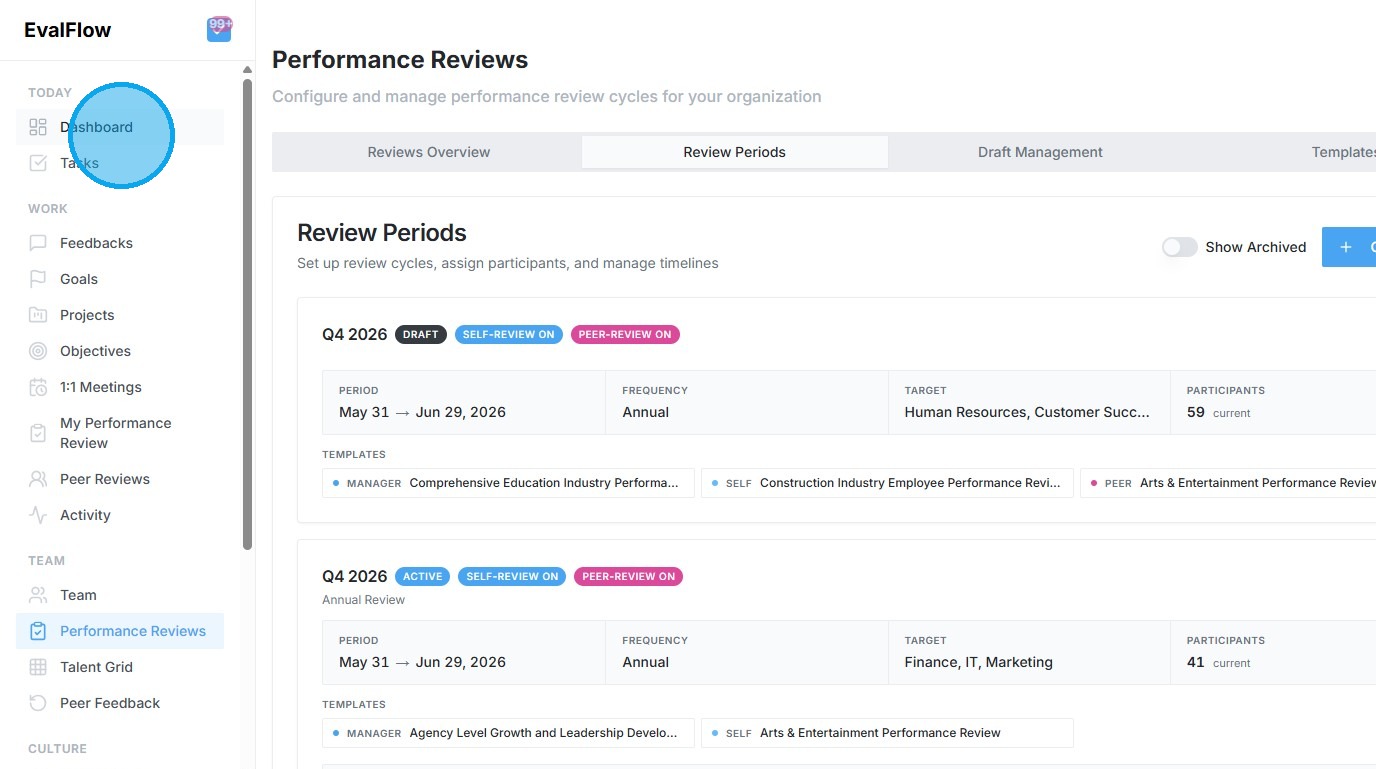
2. Click "Dashboard"
3. Click "Subscribe Now" in the trial notification.
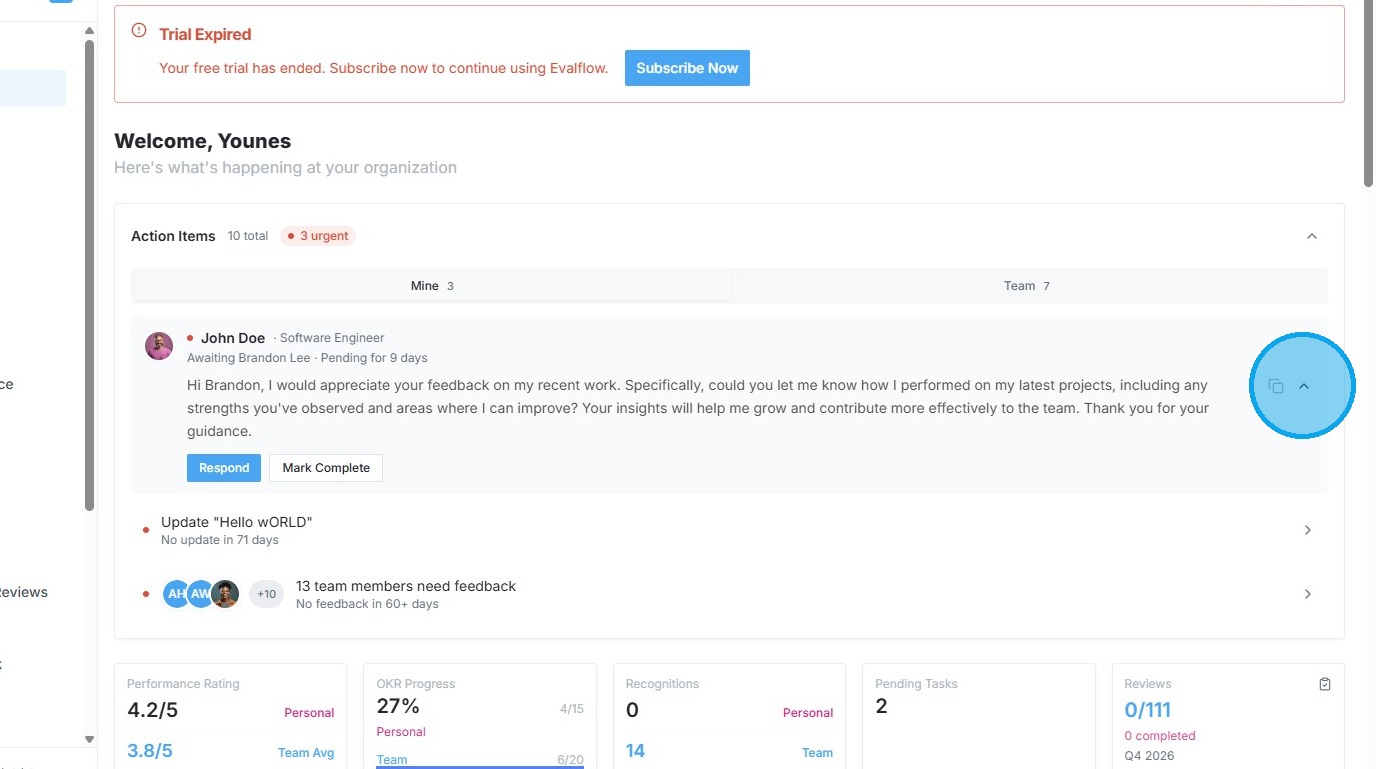
4. Select the "Update Hello WORLD" action item.
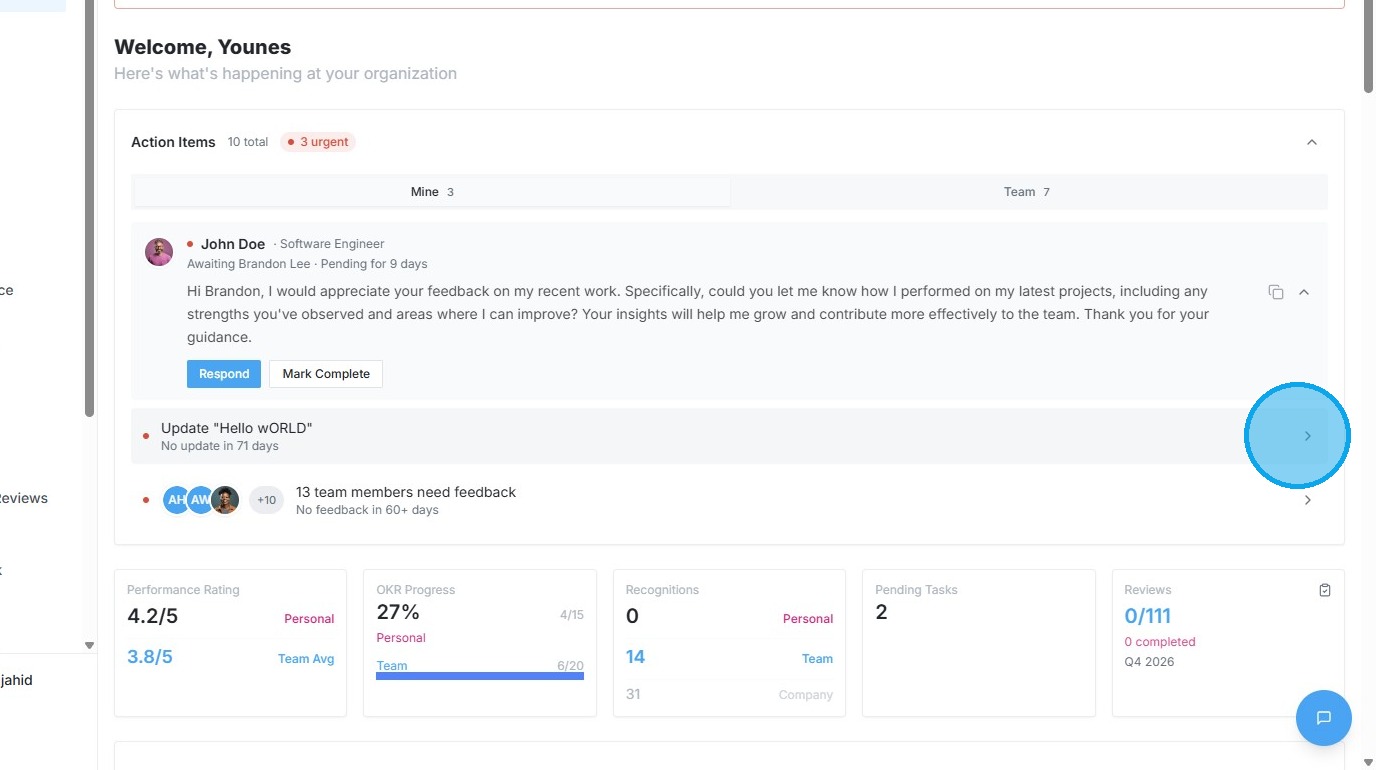
Feedback Administration
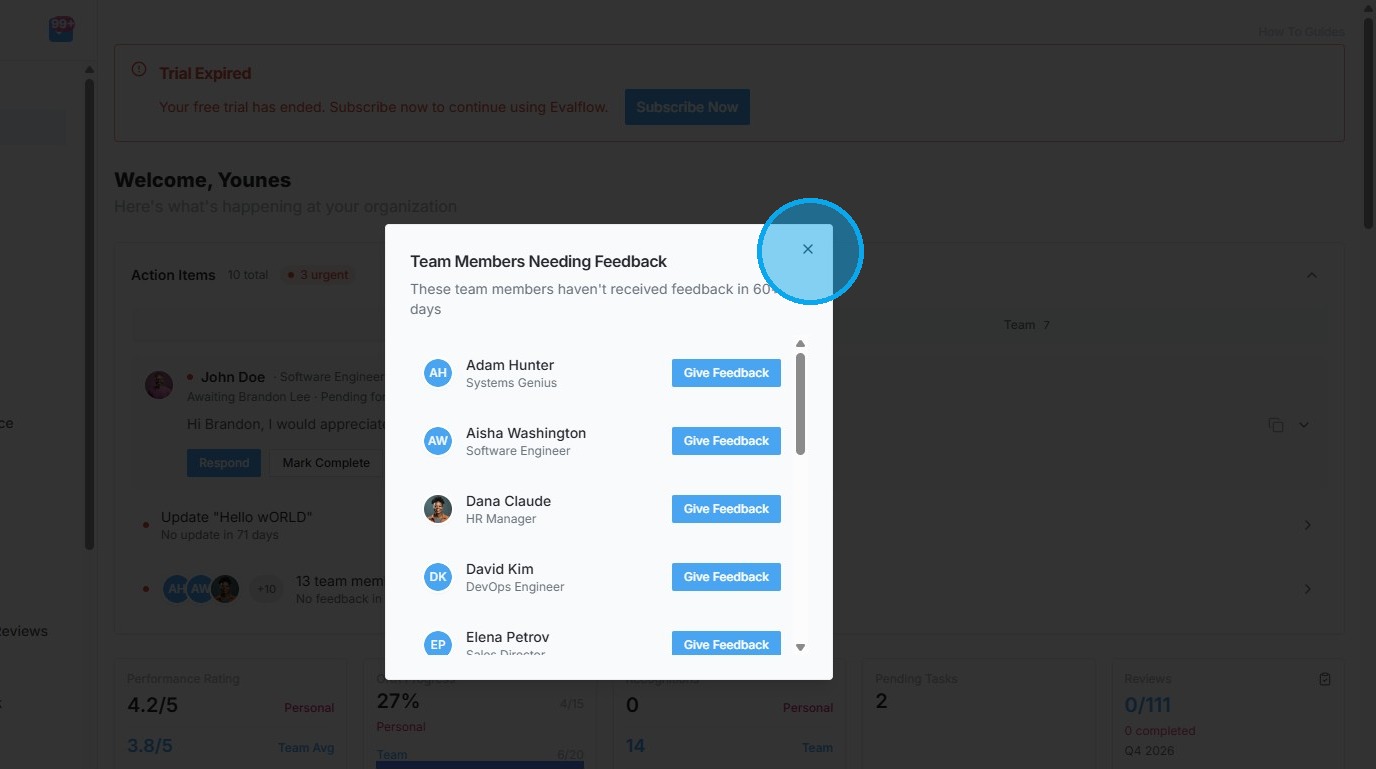
5. Open the "Team Members Needing Feedback" list.
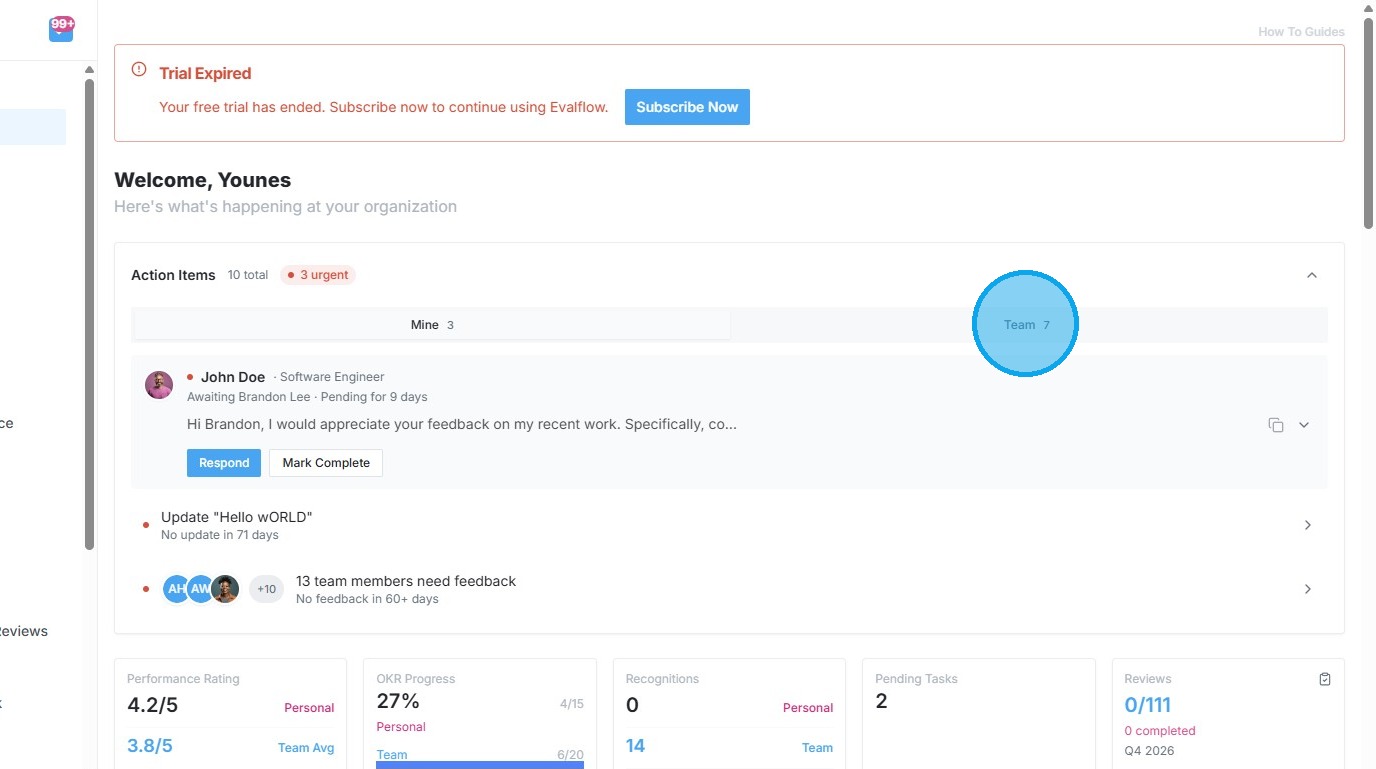
6. Switch to the "Team" view in Action Items.
7. Click "Give Feedback"
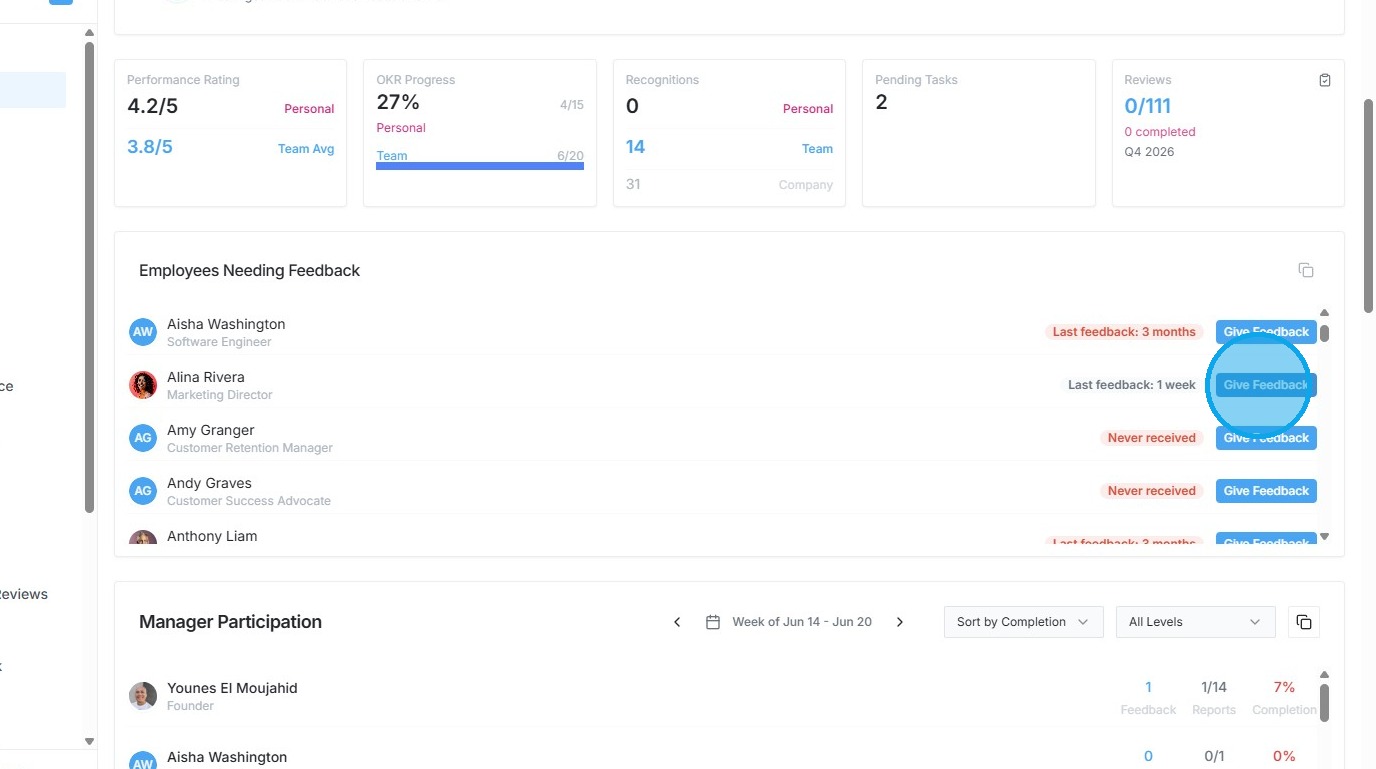
Performance Analytics
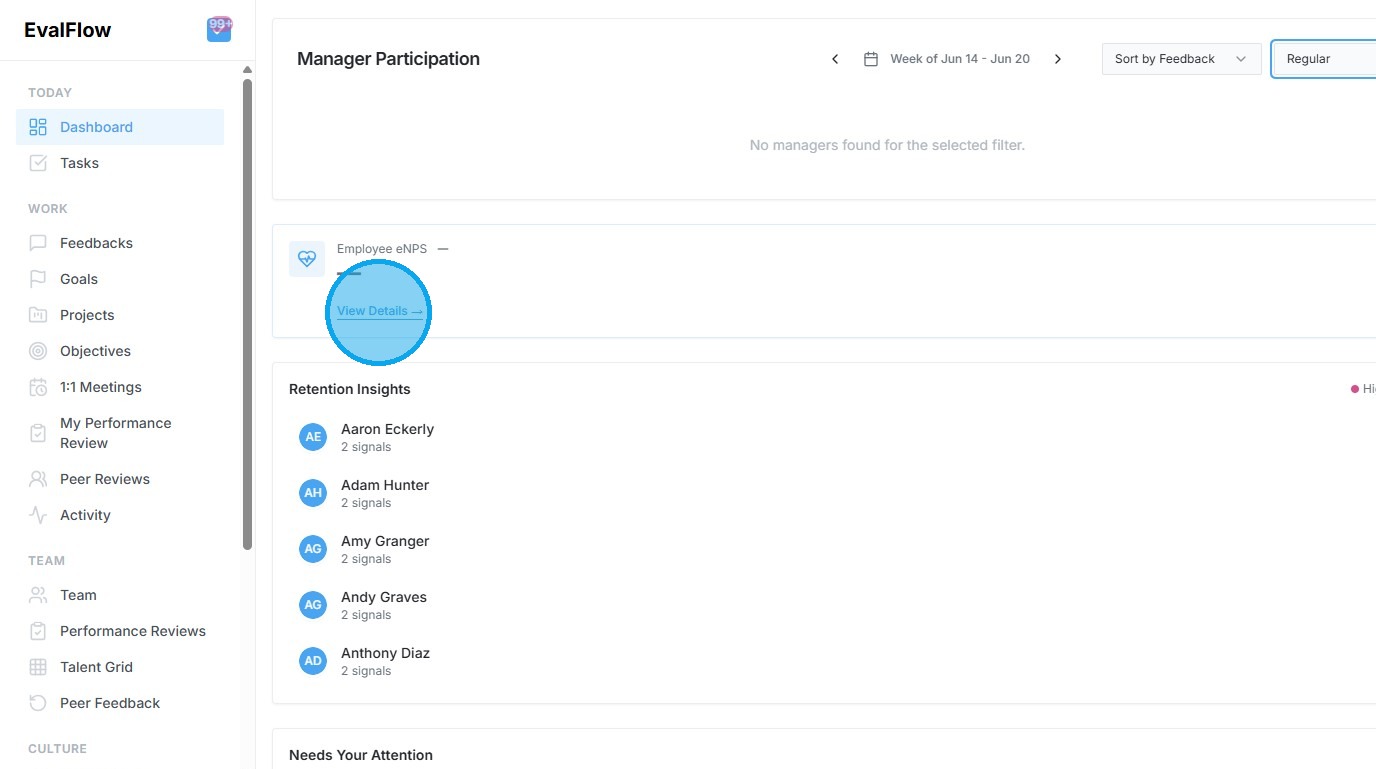
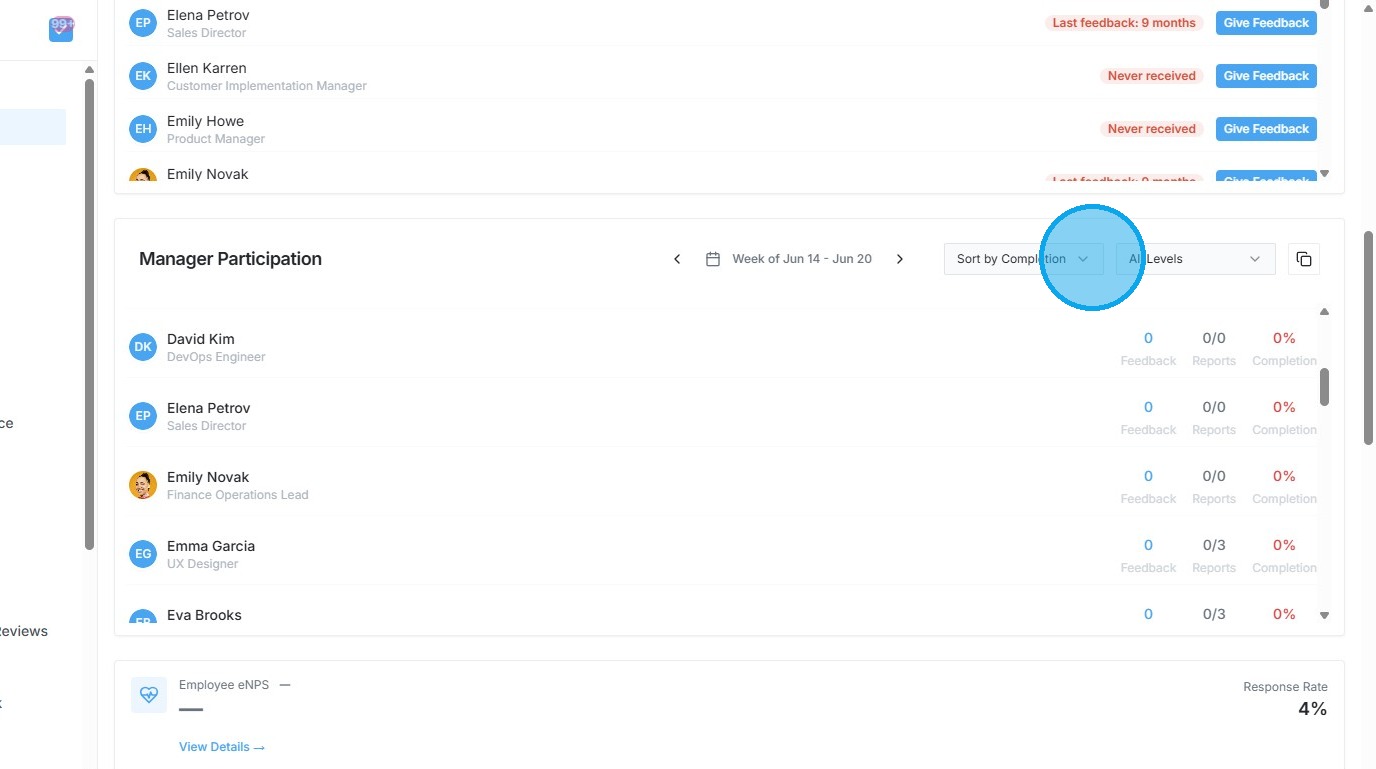
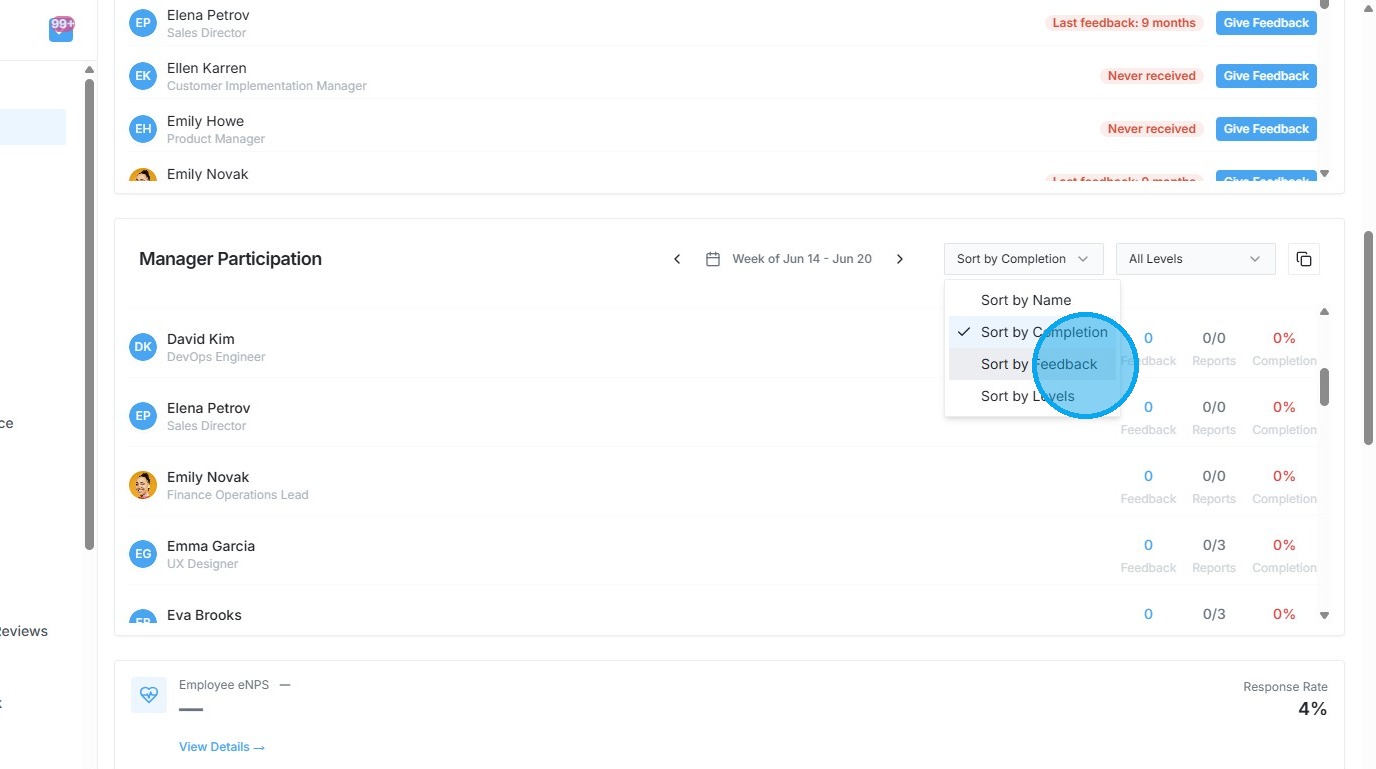
8. Sort the Manager Participation list by Feedback.
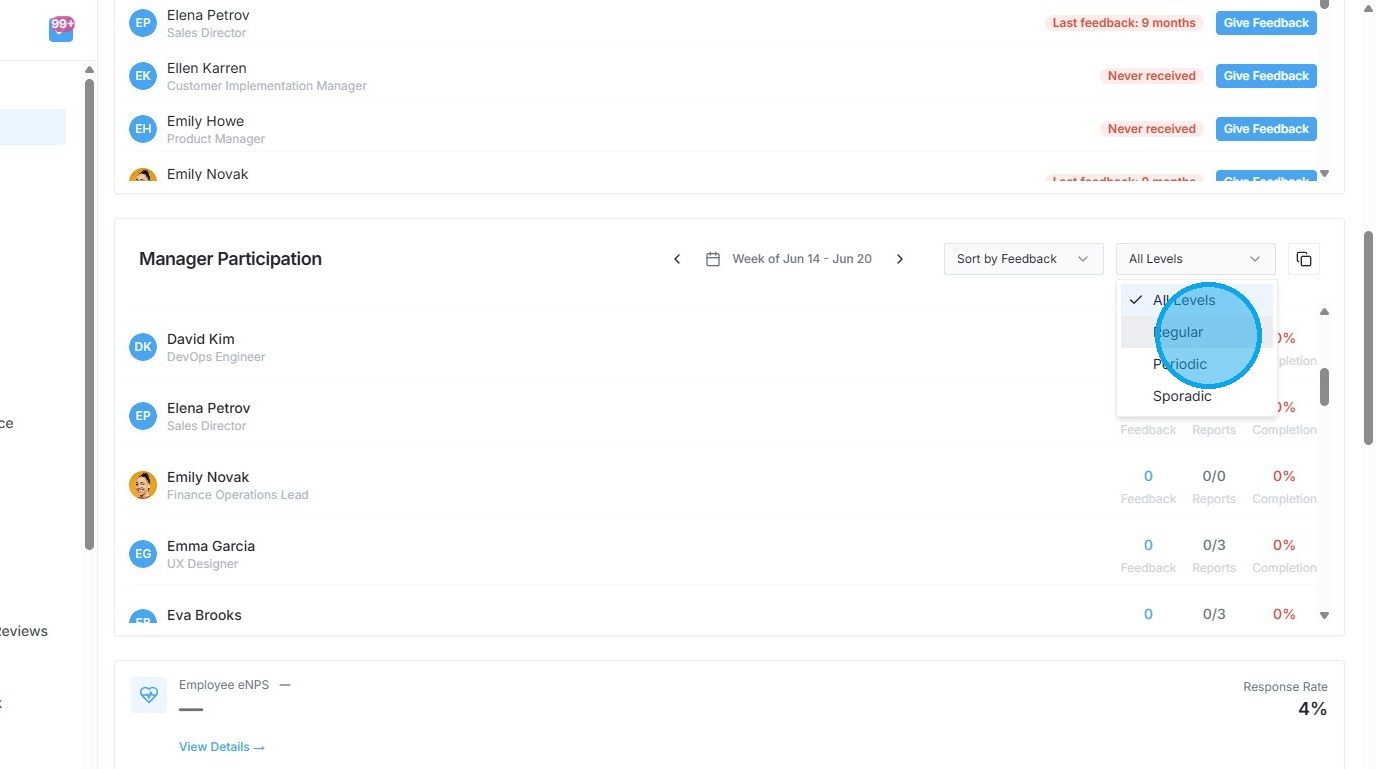
9. Filter the Manager Participation list by "Regular" level.

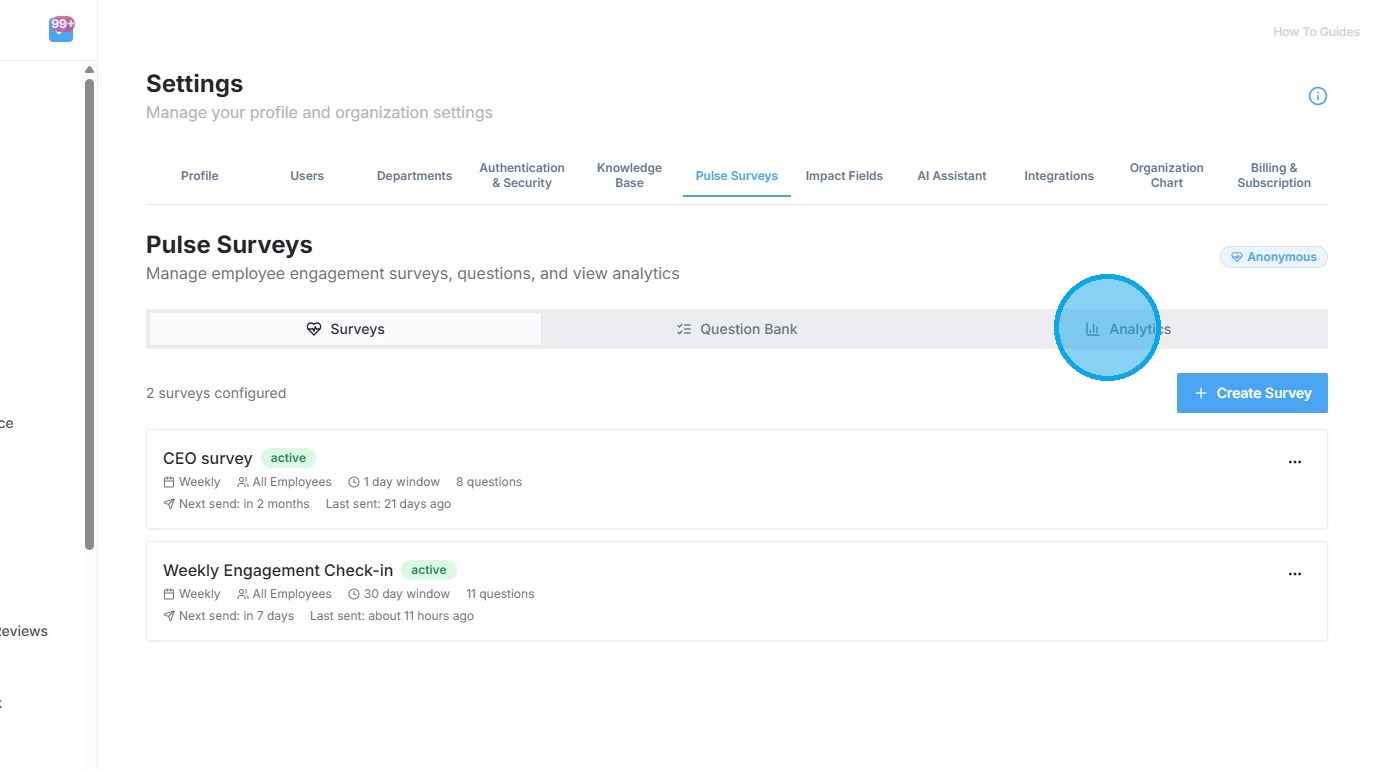
10. Access Pulse Survey analytics in organization settings.