How to Submit Employee Recognition in Evalflow
Learn how to provide formal feedback and peer recognition to your colleagues using the Evalflow platform. This guide covers selecting specific performance criteria, enhancing your messages with AI tools, and adding public comments to completed submissions.
Navigation and Access
1. Navigate to https://app.evalflow.com/feedbacks
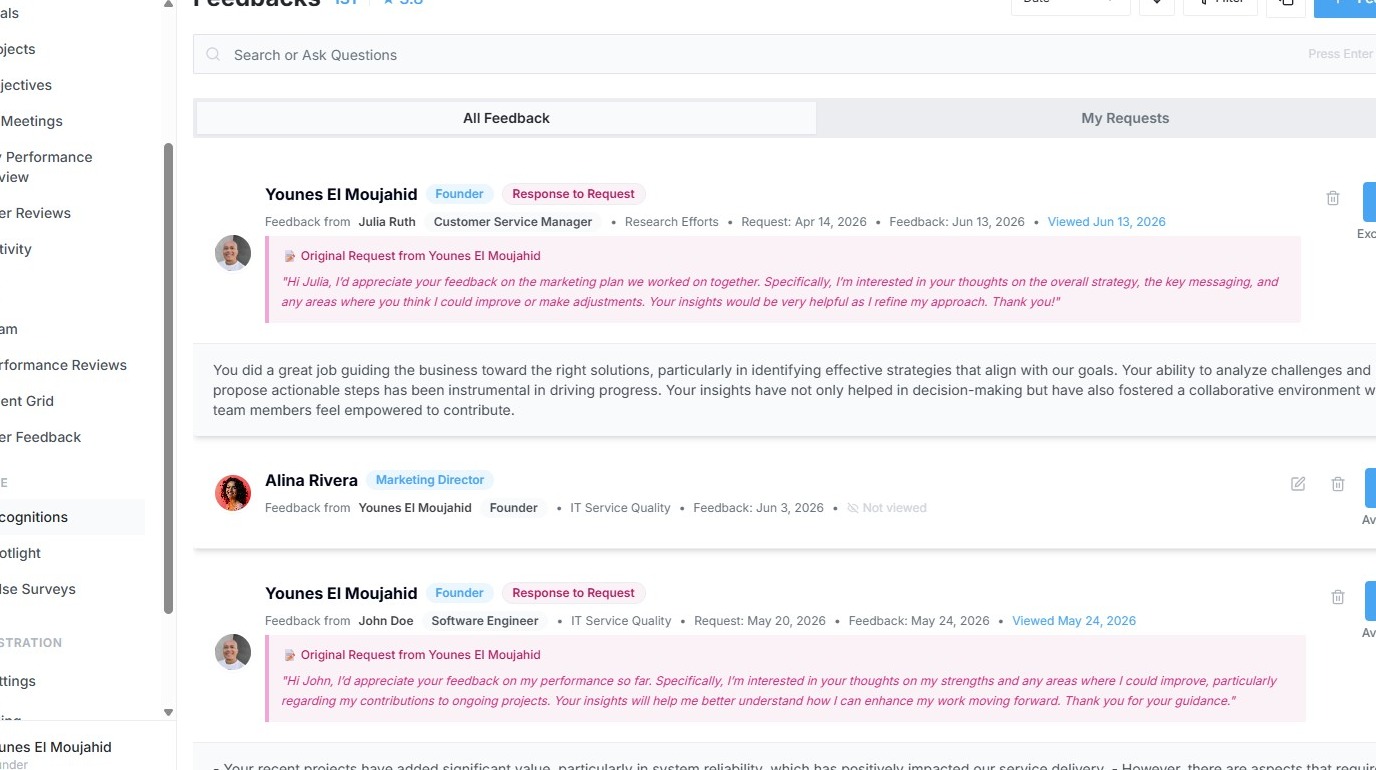
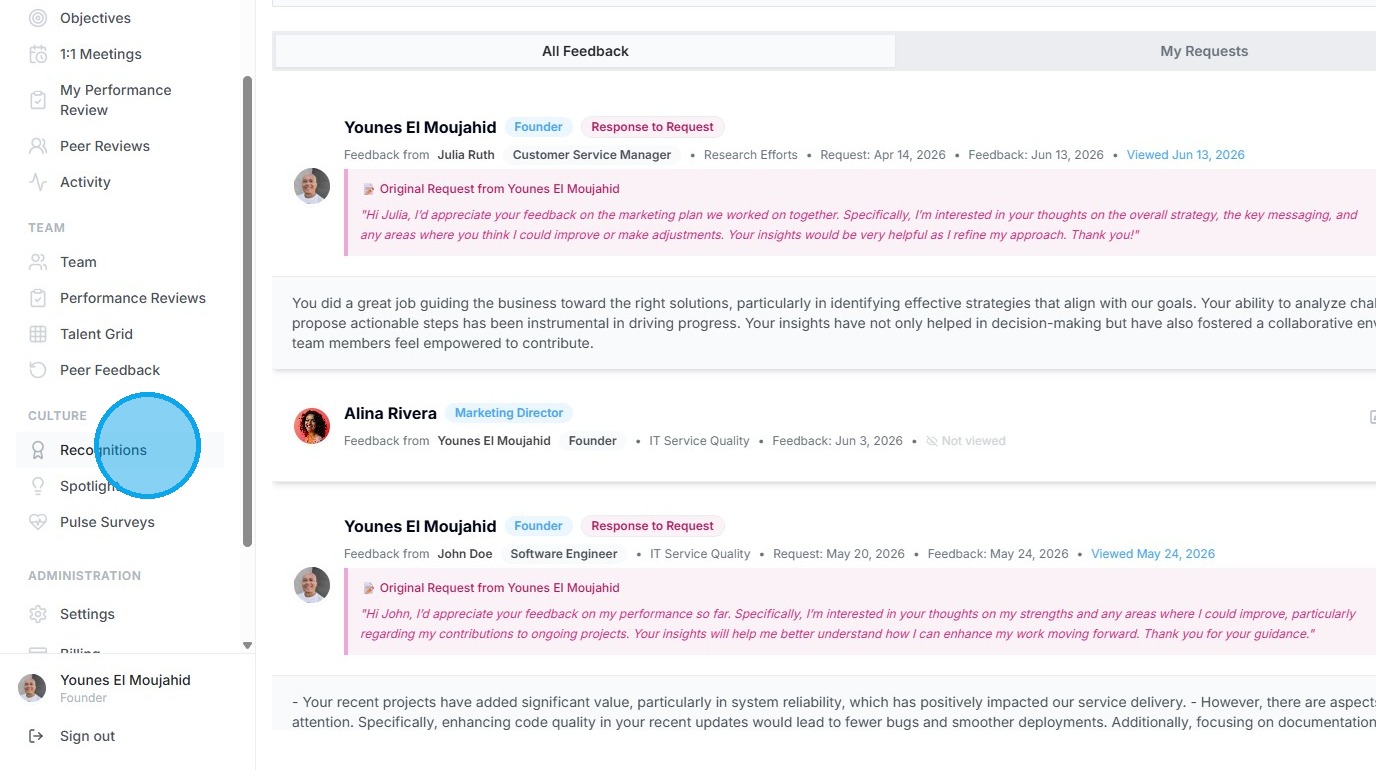
2. Click "Recognitions"
Recognition Submission
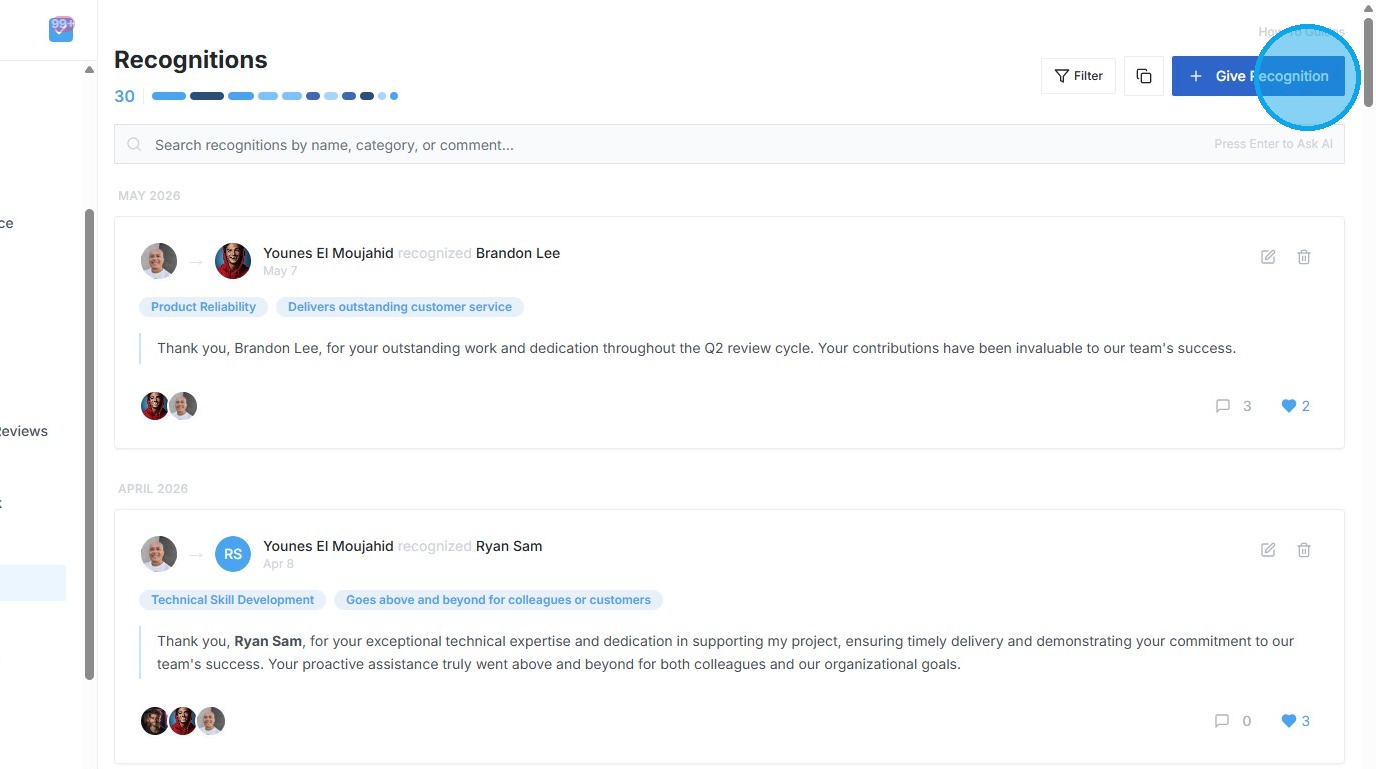
3. Click "Give Recognition"
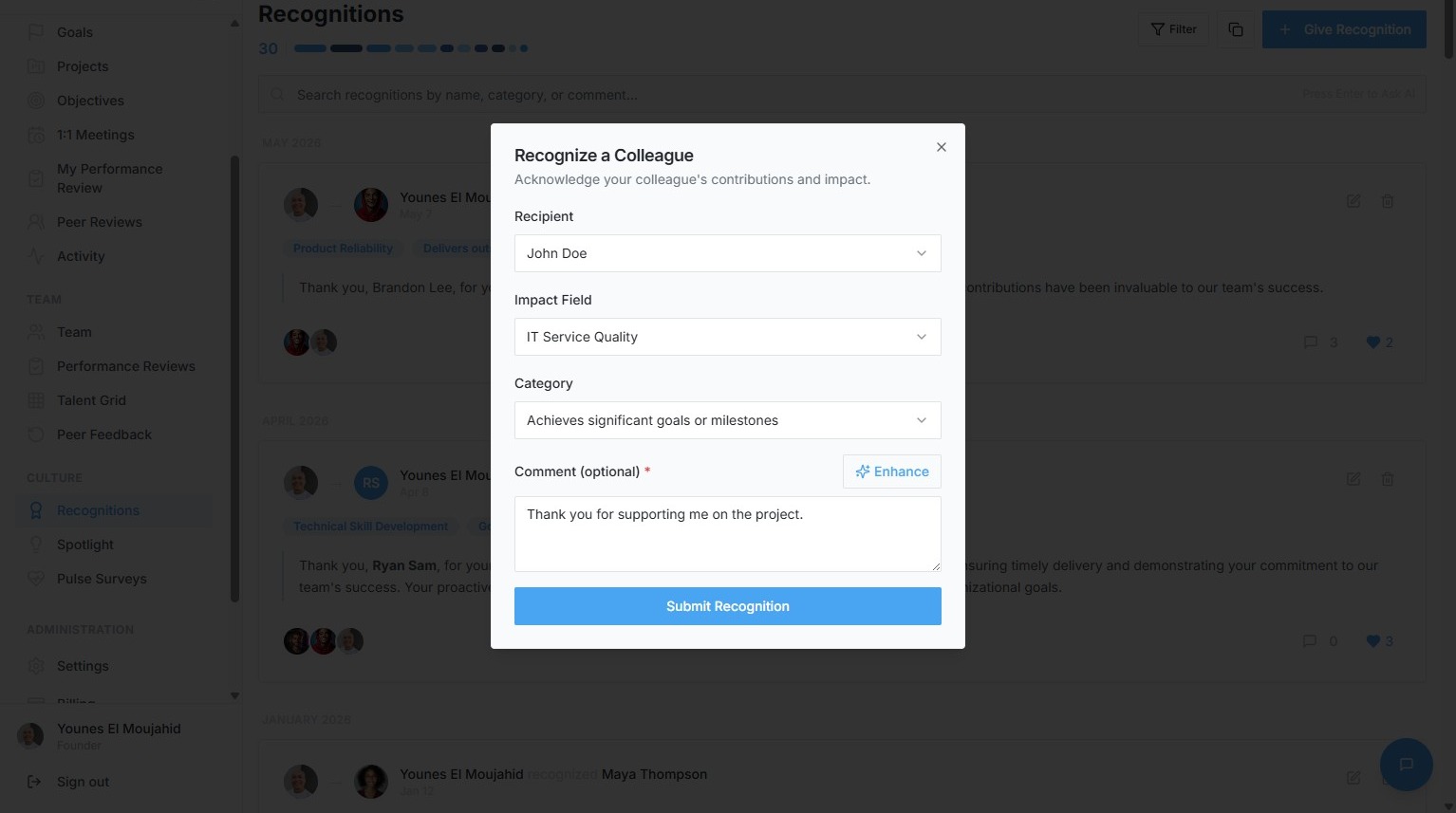
4. Select 'John Doe' as recipient
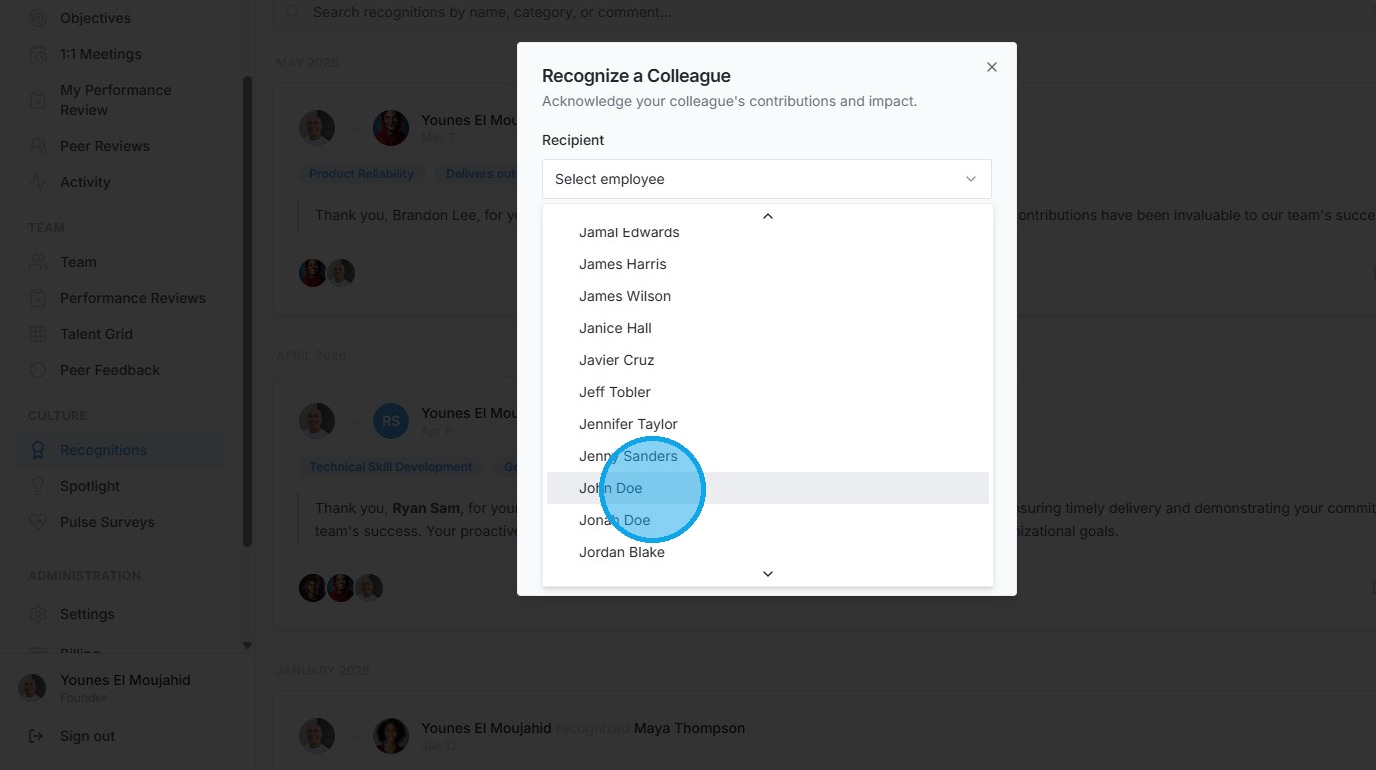
5. Select 'IT Service Quality' as impact field
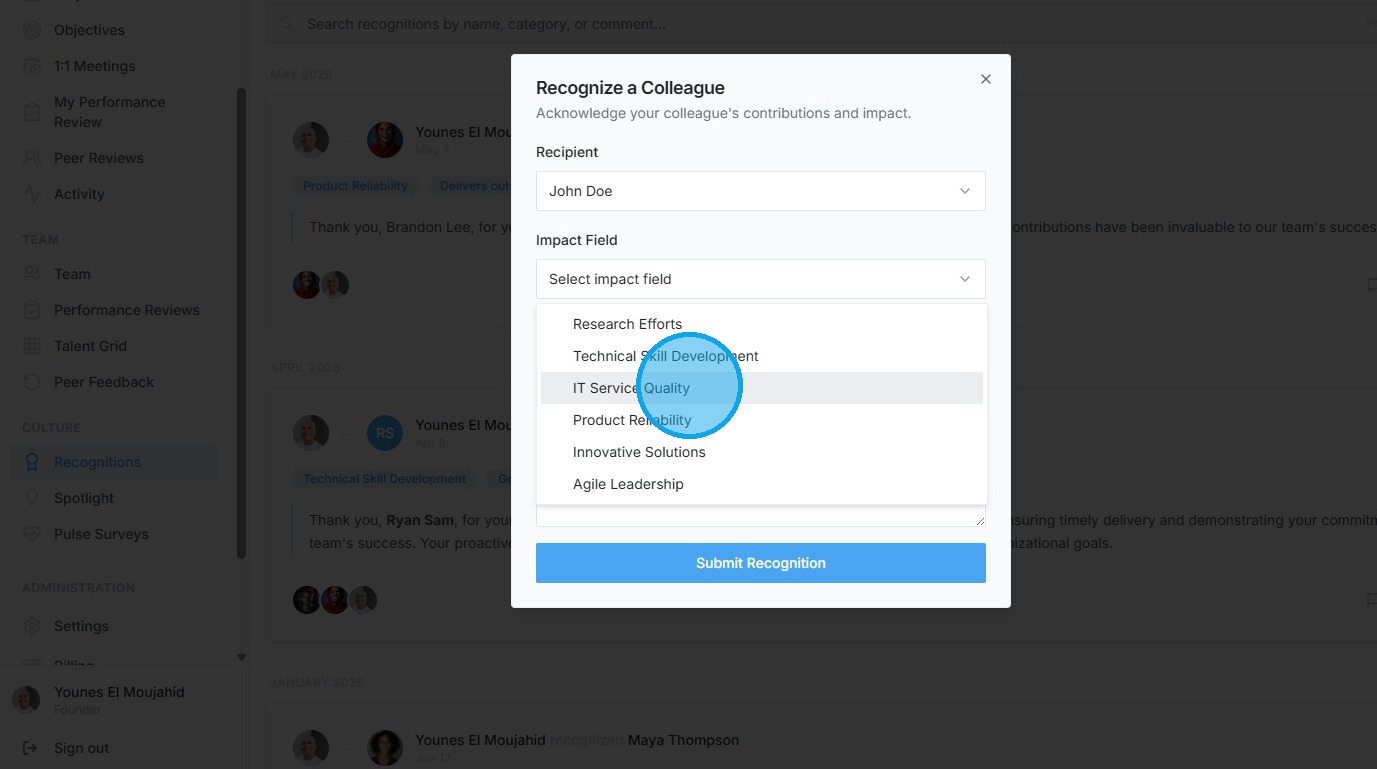
6. Select 'Achieves significant goals or milestones' as category
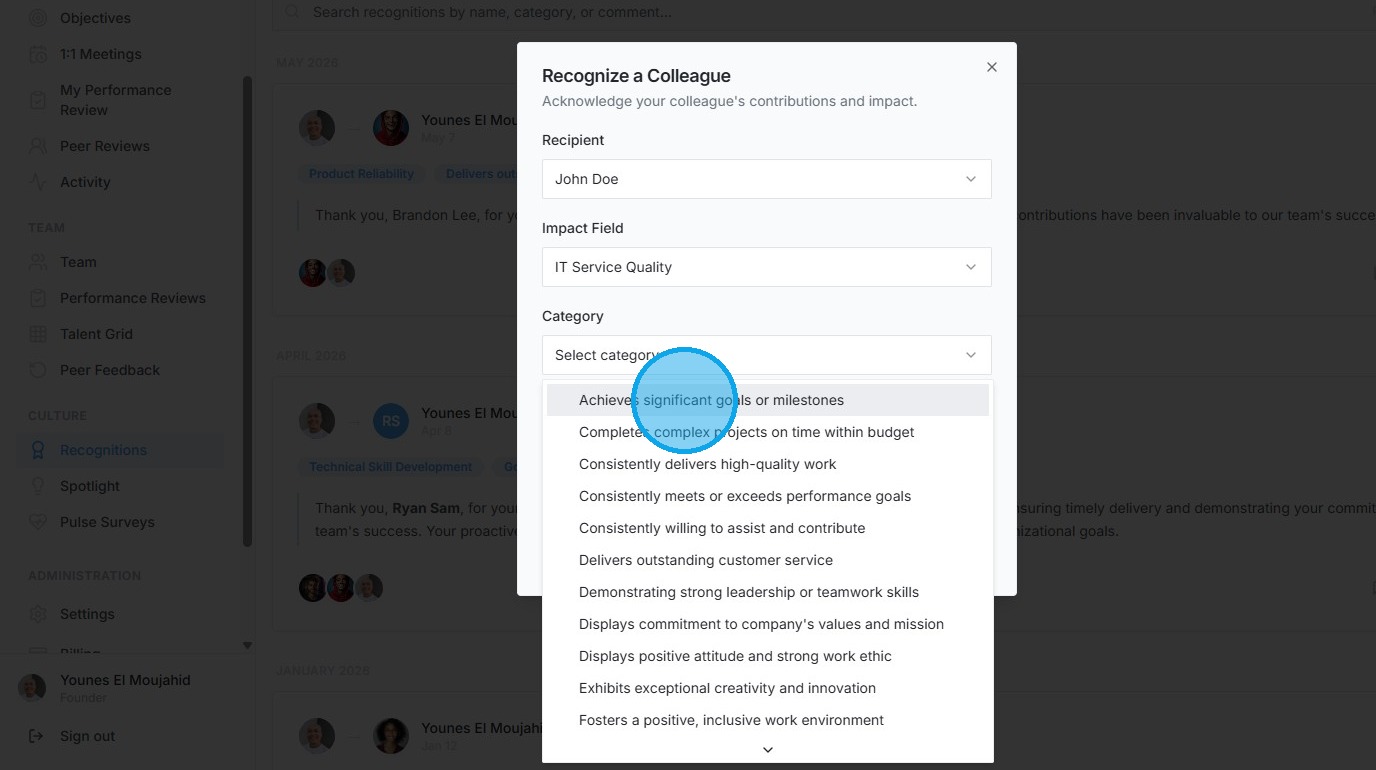
7. Type 'Thank you for supporting me on the project.' into comment field
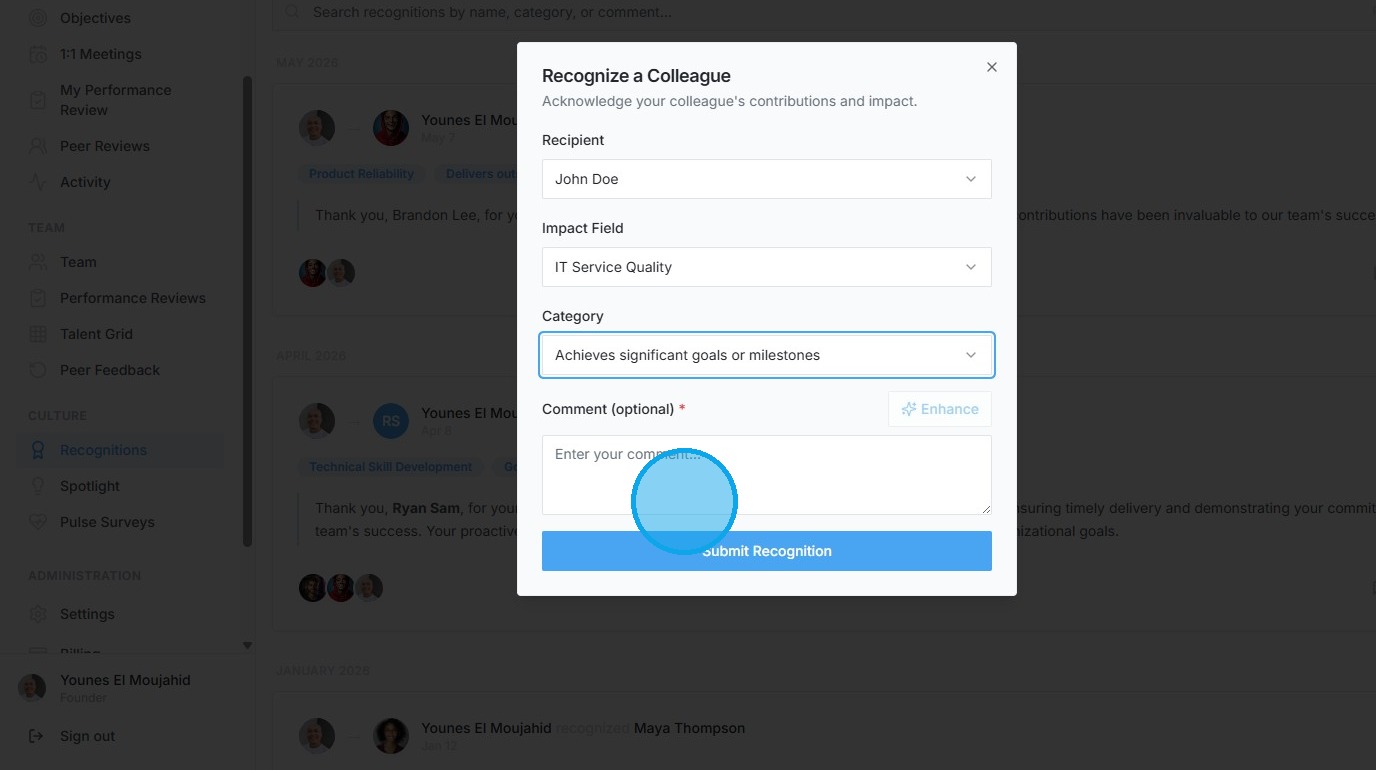
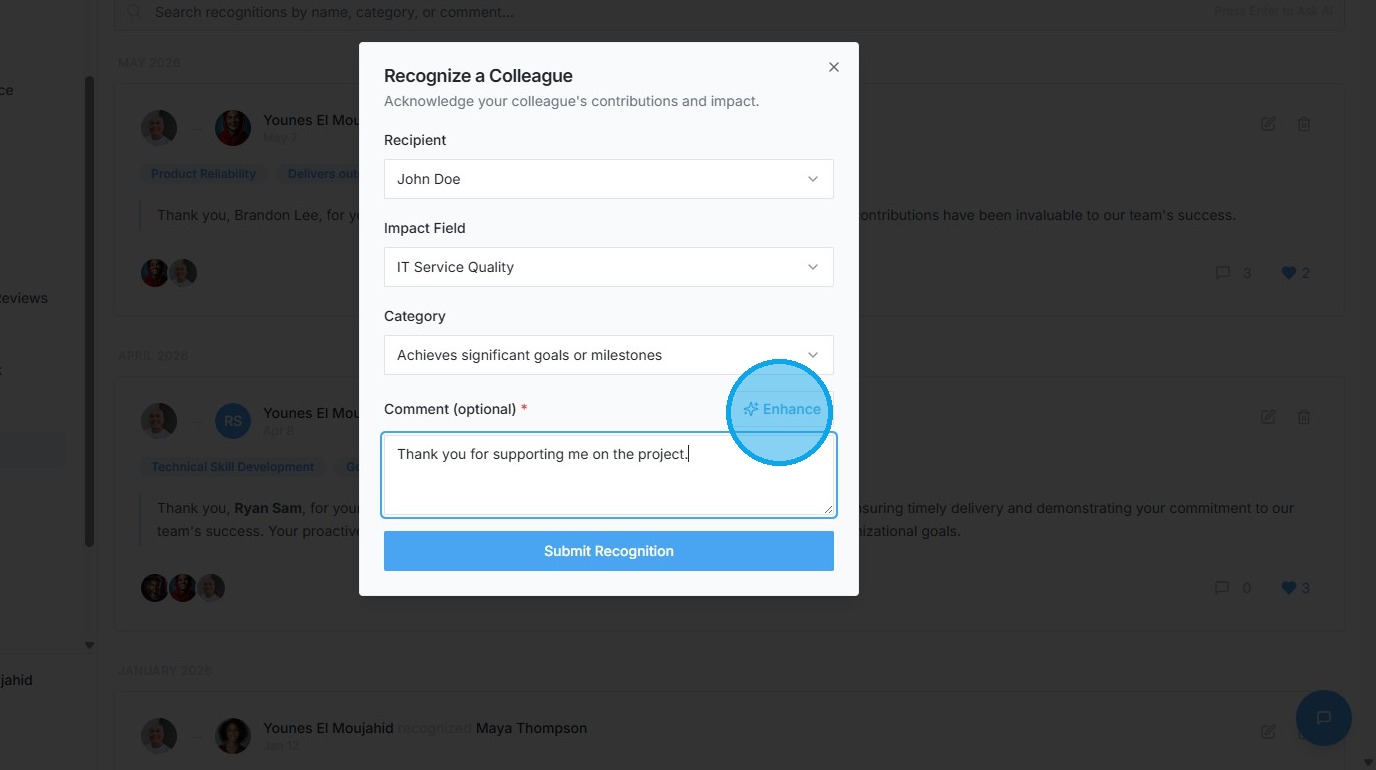
8. Click 'Enhance' to refine recognition text using AI
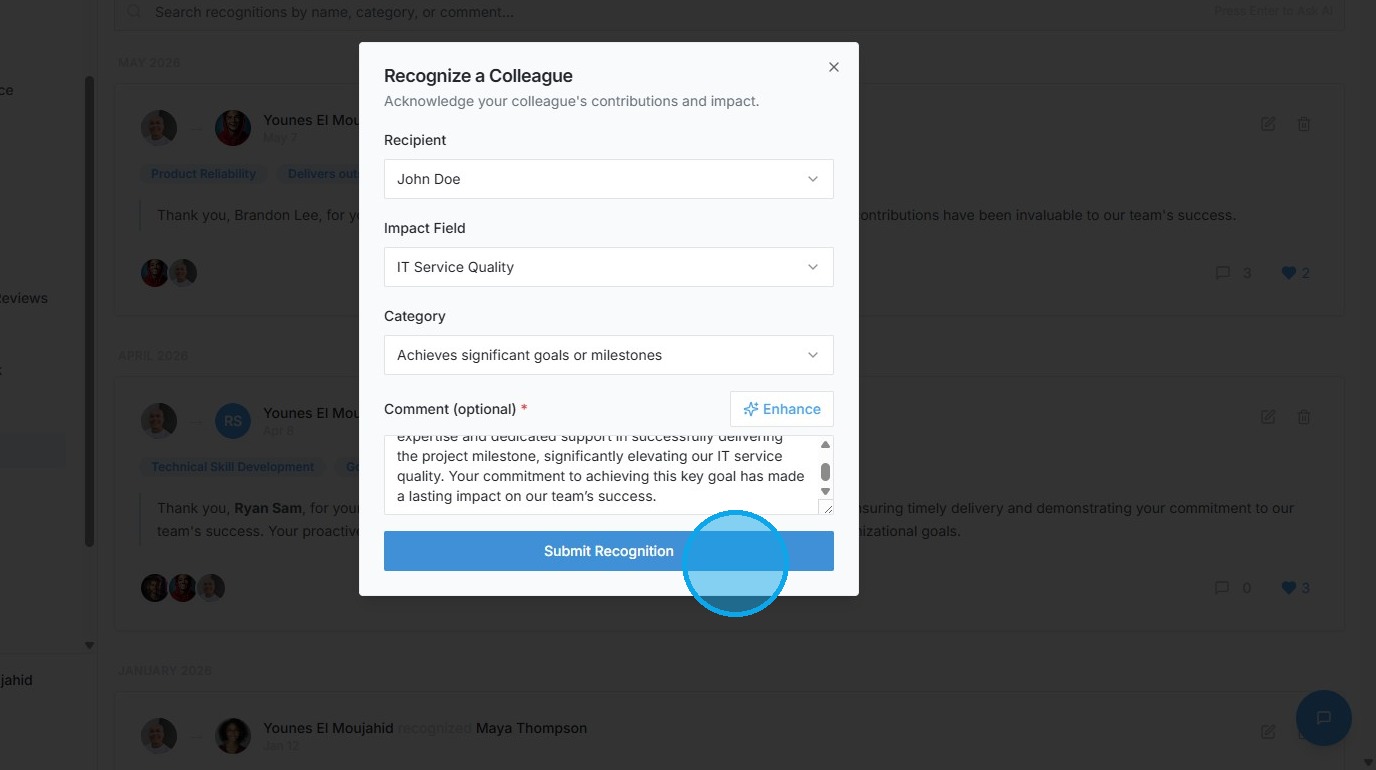
9. Click "Submit Recognition"
Engagement and Comments
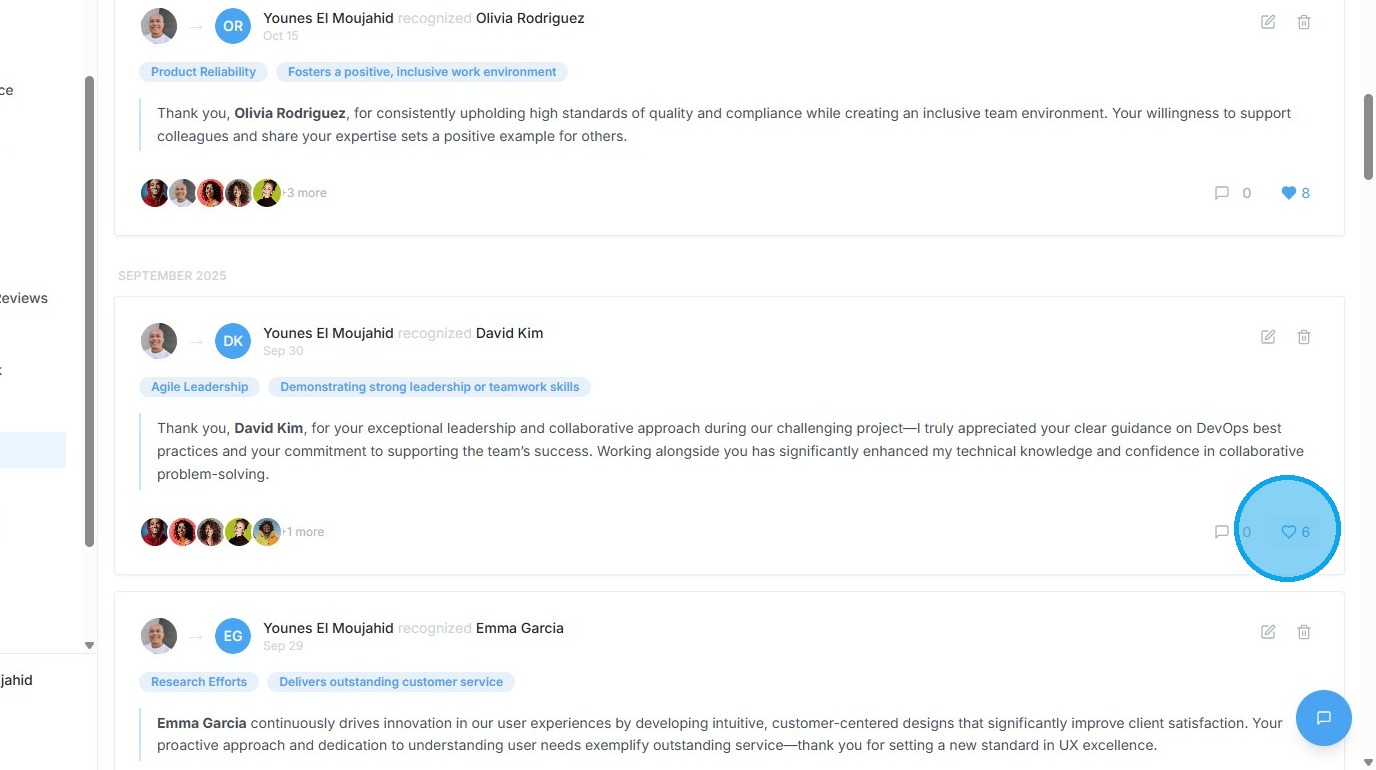
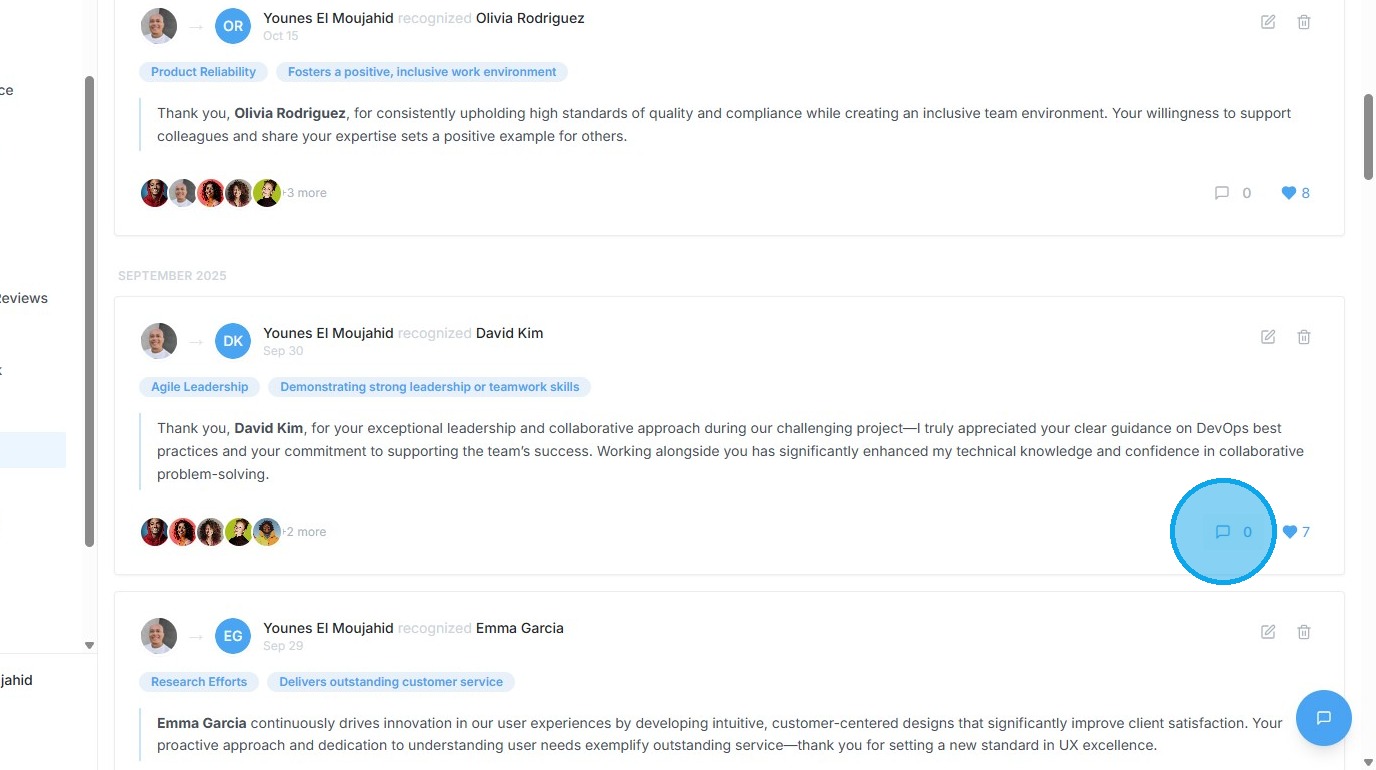
10. Click comment icon or counter to view replies
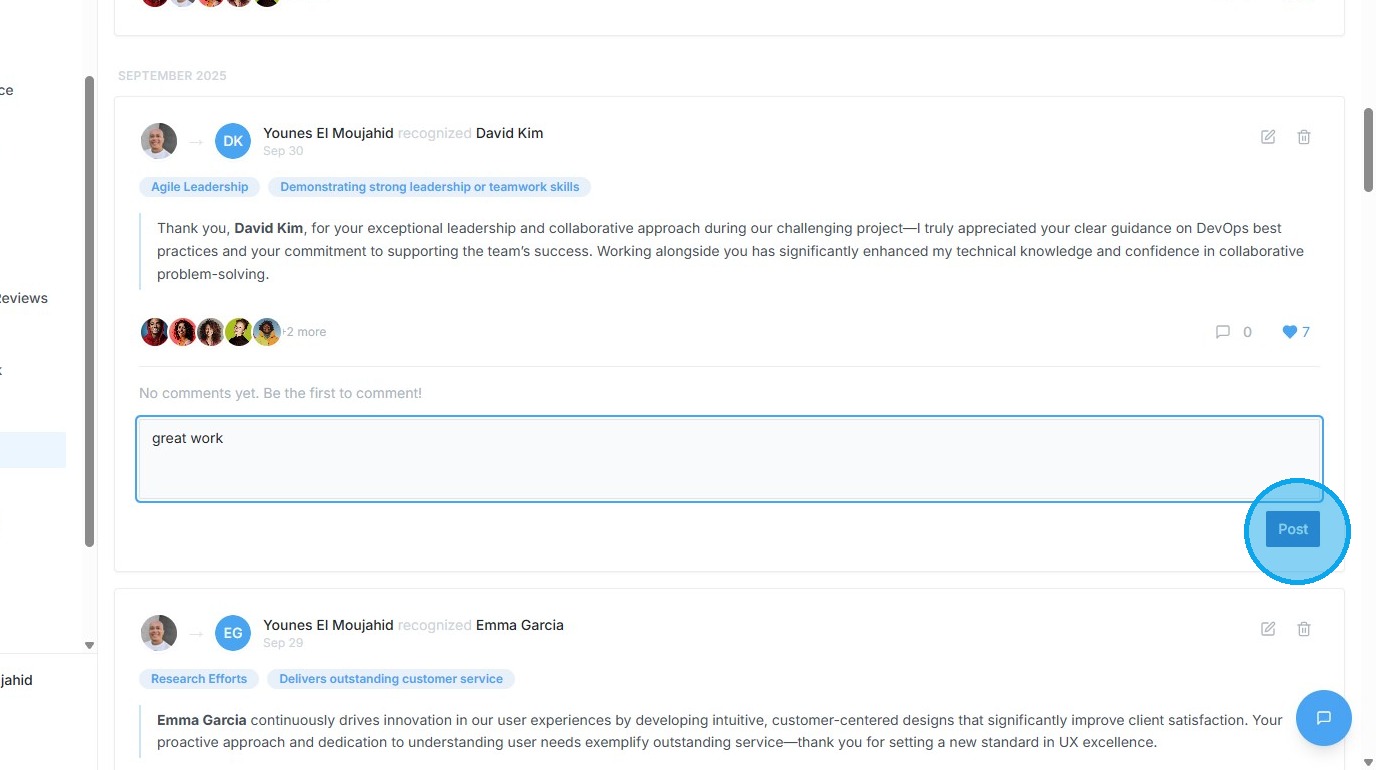
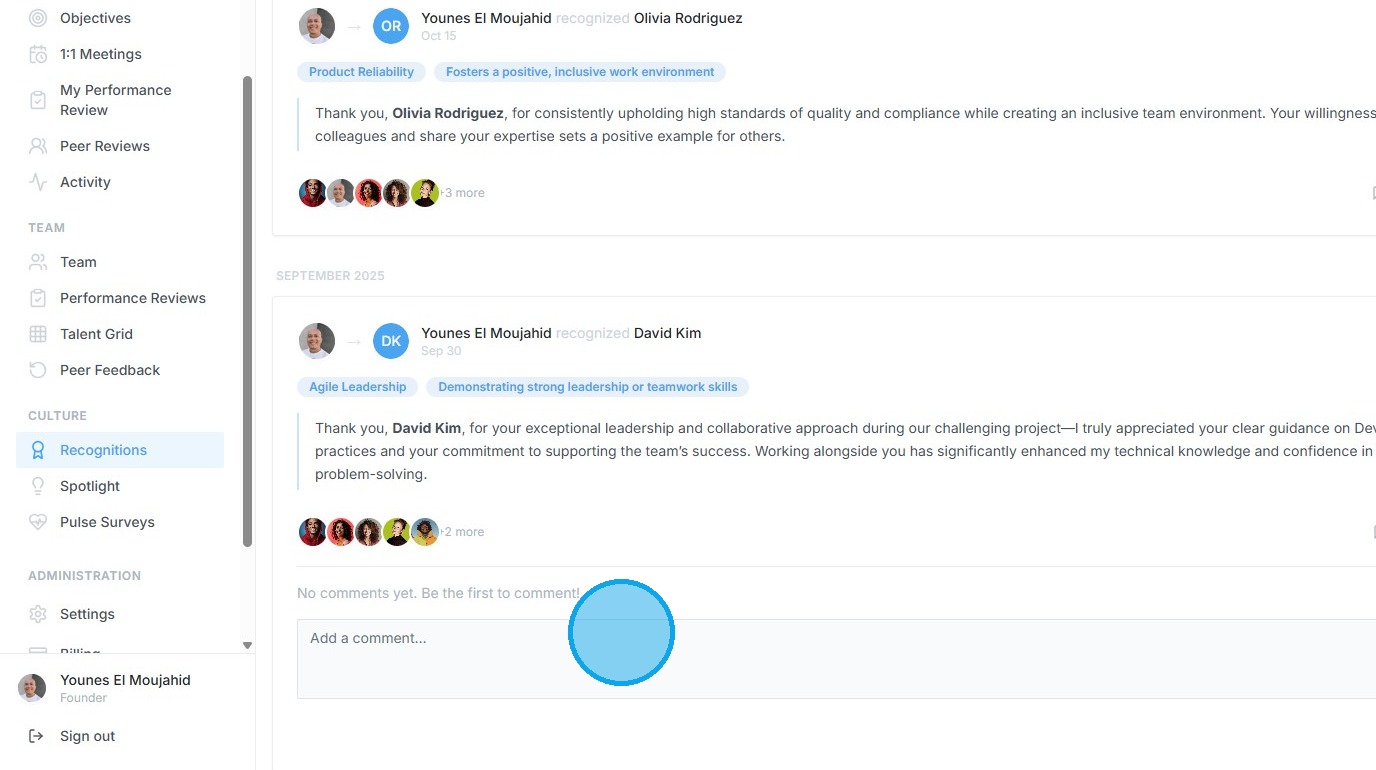
11. Type 'great work' into comment box
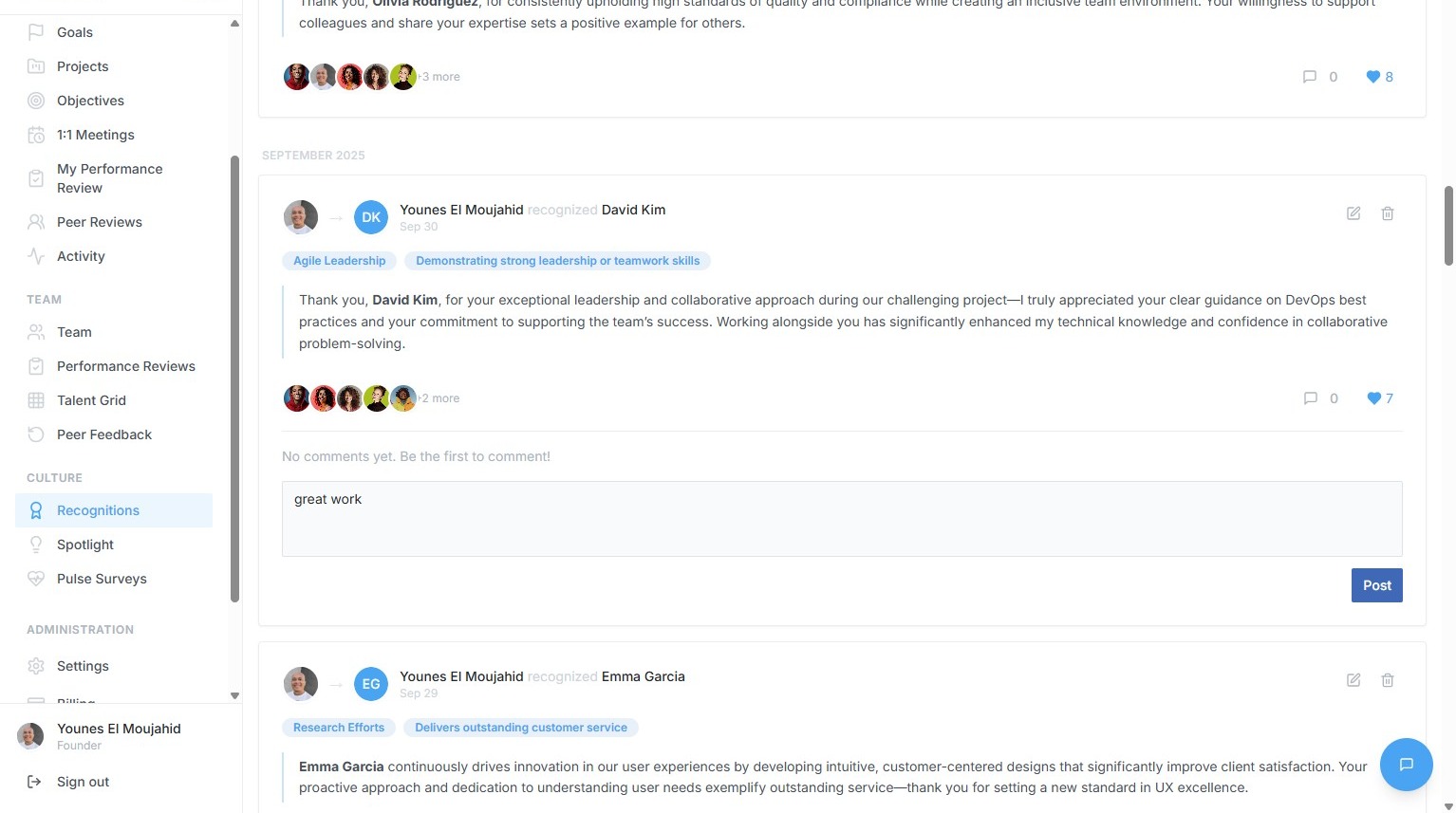
12. Click "Post"